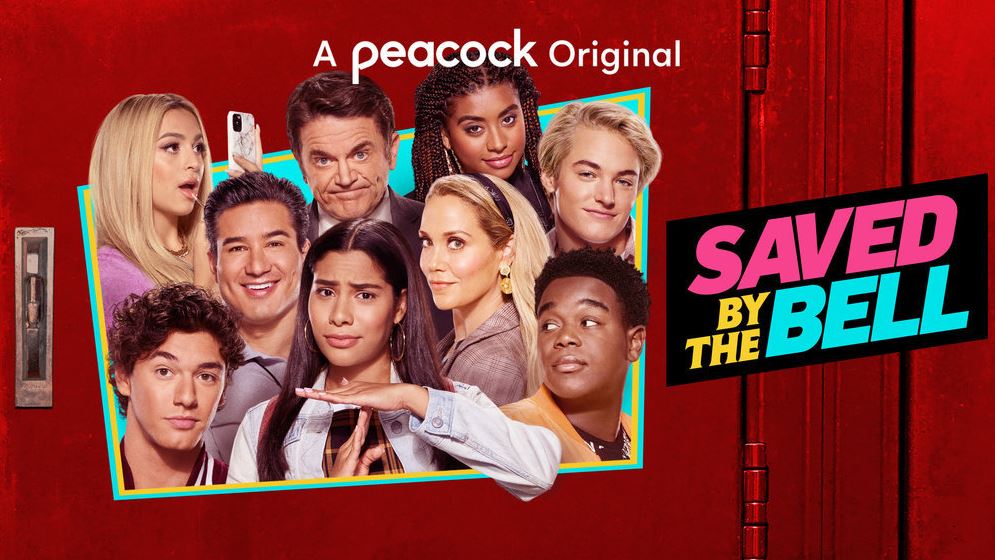
After 27 years, fans of the 90s sitcom Saved by the Bell will have a chance to return to Bayside High when the new original series premieres on NBC's streaming service Peacock just in time for Thanksgiving.
While it was initially believed to be a reboot, Saved by the Bell is actually a reimagining of the original series that will focus on an entirely new class of students at Bayside High. However, several cast members from the original show including Elizabeth Berkley Lauren, Mario Lopez and John Michael Higgins will return to reprise their roles as Jessie Spano, A. C. Slater and Principal Toddman respectively.
In the new original series by Emmy award winning writer Tracey Wigfield, California governor Zack Morris, played by Mark-Paul Gosselaar from the original cast, gets into trouble for closing too many of the state's underfunded high schools. However, he quickly comes up with a solution to the problem by suggesting that all of the affected students get sent to the most well-funded schools in California including Bayside High. This influx of new students at the school gives the privileged Bayside kids (who never had a problem that can't be solved in twenty-two minutes) a much-needed dose of reality.
While the original show aired weekly, NBC is bringing all ten episodes of the Saved by the Bell reboot to Peacock on Wednesday, November 25. Viewers can also catch up on past episodes from the original series on Peacock as the streaming service launched a new Saved by the Bell channel ahead of the reboot's release.
Whether you grew up watching the show in the 90s or are just looking for something fun to watch with your family this Thanksgiving, we'll show you exactly how to watch Saved by the Bell online from anywhere in the world.
Saved by the Bell - When and where?
The reboot of the classic 90s sitcom Saved by the Bell will be available to watch on NBC's streaming service Peacock beginning at 3am ET / 12am PT on Wednesday, November 25. All 10 episodes of the new original series will release at the same time on Peacock Premium and each episode will be 22 minutes long.
How to watch Saved by the Bell from anywhere
We have all the details on how you can watch Saved by the Bell in the U.S., Canada, UK and Australia further down in this guide. However, if you want to watch the new original series when you're away from home, then you'll likely run into problems as your domestic coverage online from abroad will be geo-blocked.
That's where one of the best VPNs (Virtual Private Network) can really come in handy. They allow you to virtually change the IP address of your laptop, tablet or mobile to one that's back in your home country which will let you watch as if you were back there.
VPNs are incredibly easy to use and have the added benefit of providing you with an additional layer of security when surfing the web. There are also a lot of options but we recommend ExpressVPN as our top pick due to its speed, security and ease of use. The service can even be used on a wide array of operating systems and devices (e.g. iOS, Android, Smart TVs, Fire TV Stick, Roku, game consoles, etc). Sign up for ExpressVPN now and enjoy a 49% discount and 3 months FREE with an annual subscription. You can even test it out for yourself thanks to the service's 30-day money back guarantee. Looking for more options?
No matter where in the world you may be, a VPN is one of the easiest ways to watch Saved by the Bell. Get in on this deal now!
Watch Saved by the Bell in the U.S. exclusively on Peacock
US viewers will be able to watch all 10 episodes of the Saved by the Bell reboot when it premieres on Peacock on Wednesday, November 25. If you're not a Peacock subscriber yet, you can sign up for the service's Free plan to check out the first episode of the new original series. In order to watch all 10 episodes though, you'll need to sign up for Peacock Premium which costs $4.99 per month or $49.99 for the year.
Additionally, Peacock launched a new Saved by the Bell channel earlier this month that features over 100 episodes from the original series ahead of the reboot's release. Unlike the new series, all of these episodes can be streamed online for free with just a Peacock Free plan.
Unlike in the US, Canadian fans of Saved by the Bell have plenty of ways to watch the new original series. If you're a cable subscriber, you can watch the show on W Network or on Global beginning at 8pm ET/PT on Thursday, November 26. However, while Global will only show the first episode of the reboot, W Network will show back to back episodes. New episodes will air at the same time every week but if you want to binge watch all 10 episodes at once, you can do so on STACKTV on Amazon Prime Video. STACKTV costs $12.99 per month but the service does offer a 30-day free trial if you want to test it out for yourself to watch the Saved by the Bell reboot.
How to watch Saved by the Bell in the UK
Unfortunately for fans of Saved by the Bell in the UK, none of the country's broadcasters or streaming services have yet to acquire the rights to the new original series. This means that you'll need to grab a VPN and follow the steps listed above to watch it in the UK.
Livestream Saved by the Bell in Australia
Australian viewers will be able to watch the Saved by the Bell reboot on the streaming service Stan beginning on Thursday, November 26. Stan offers three plans in the form of Stan Basic, Stan Standard and Stan Premium with the biggest difference between them being that you'll need the Premium plan for $17 per month to watch content in 4K. However, if watching Saved by the Bell in 1080p is fine with you, then the Basic plan for $10 per month should suffice. Regardless of which plan you choose, Stan offers a 30-day free trial so you can test out the service for yourself.
from Android Central - Android Forums, News, Reviews, Help and Android Wallpapers https://ift.tt/33bGnwr
via IFTTT
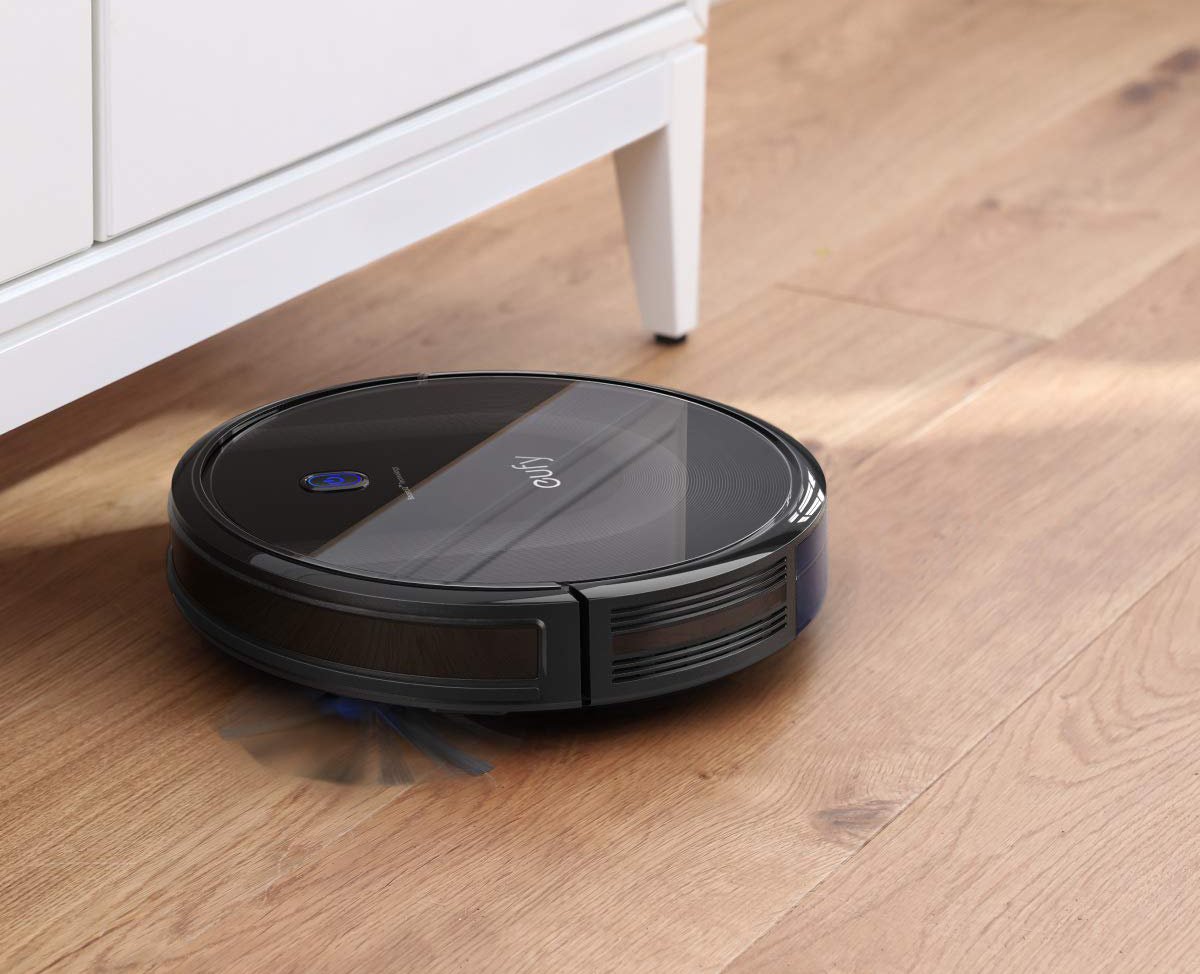
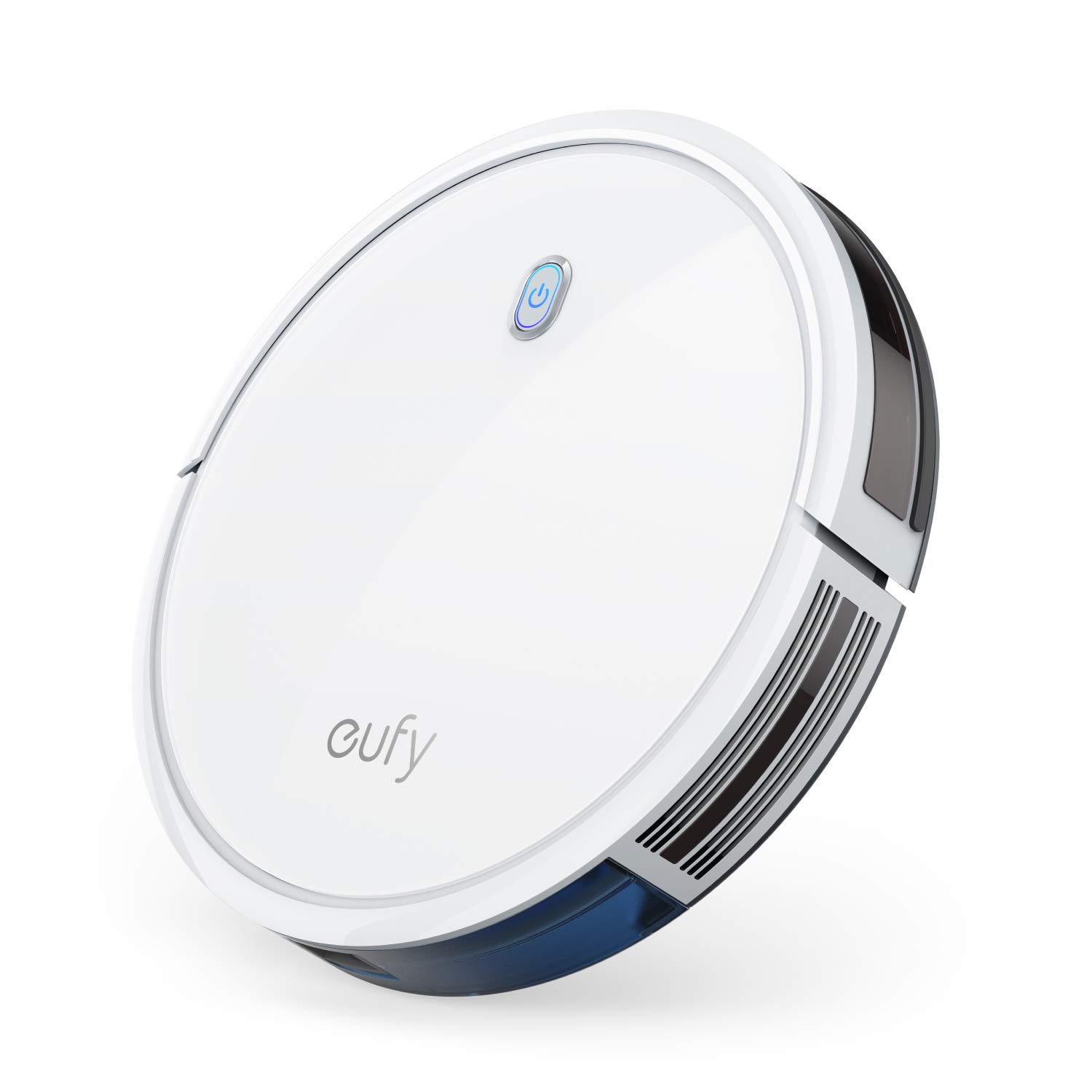
Robot vacuum cleaners used to cost an arm and a leg, now they're much more affordale. With Black Friday now in full swing, there's never been a better time to pick one up. If you're in the hunt for a robot vacuum this season, the Eufy RoboVac 11S is the perfect entry-level option, and it's just $150.
the Eufy RoboVac 11S has great suction, is quiet, self-charges, and can clean both hard floors and carpets.
One of the Best robot vacuum deals this Black Friday, the 11S is a great entry-level robot vacuum for first-time owners, or as a gift for someone else. It works on both hard floors and carpets, and its low profile design comes in two colors, black or white. It has 1300Pa of suction power and BoostIQ technology to increase suction power whenever extra strength is needed for those tough dirt spots. It has up to 100 hours of battery life, and Eufy says the device is no louder than a microwave. It has a tempered glass cover to protect it and uses infrared sensors to avoid crashing into your furniture and drops. The RoboVac 11S also comes with 2AAA batteries for its remote control. It has an AC power adapter and a charging base, and the RoboVac can charge itself by returning to its base station after performing a cleaning cycle. It also has a large bin so doesn't need to be emptied as much as some other models. At just 13 inches in diameter and only 3.1 inches tall, the RoboVac 11S is perfect for anyone who might be short on space.
from Android Central - Android Forums, News, Reviews, Help and Android Wallpapers https://ift.tt/3pZVPW7
via IFTTT
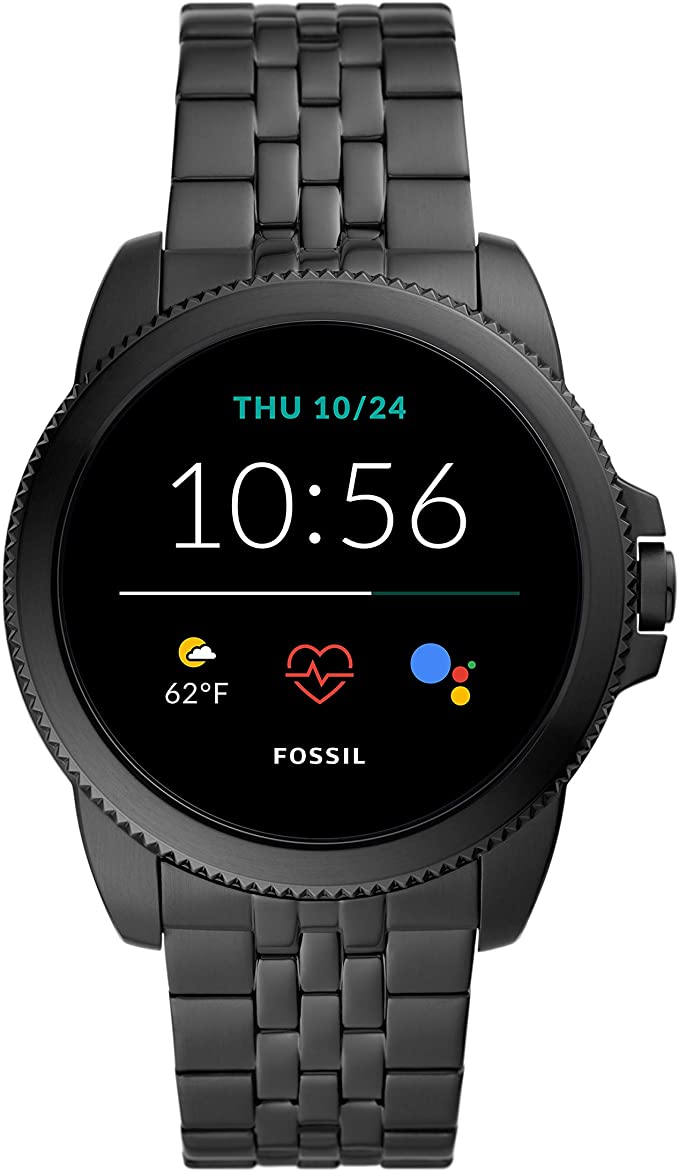
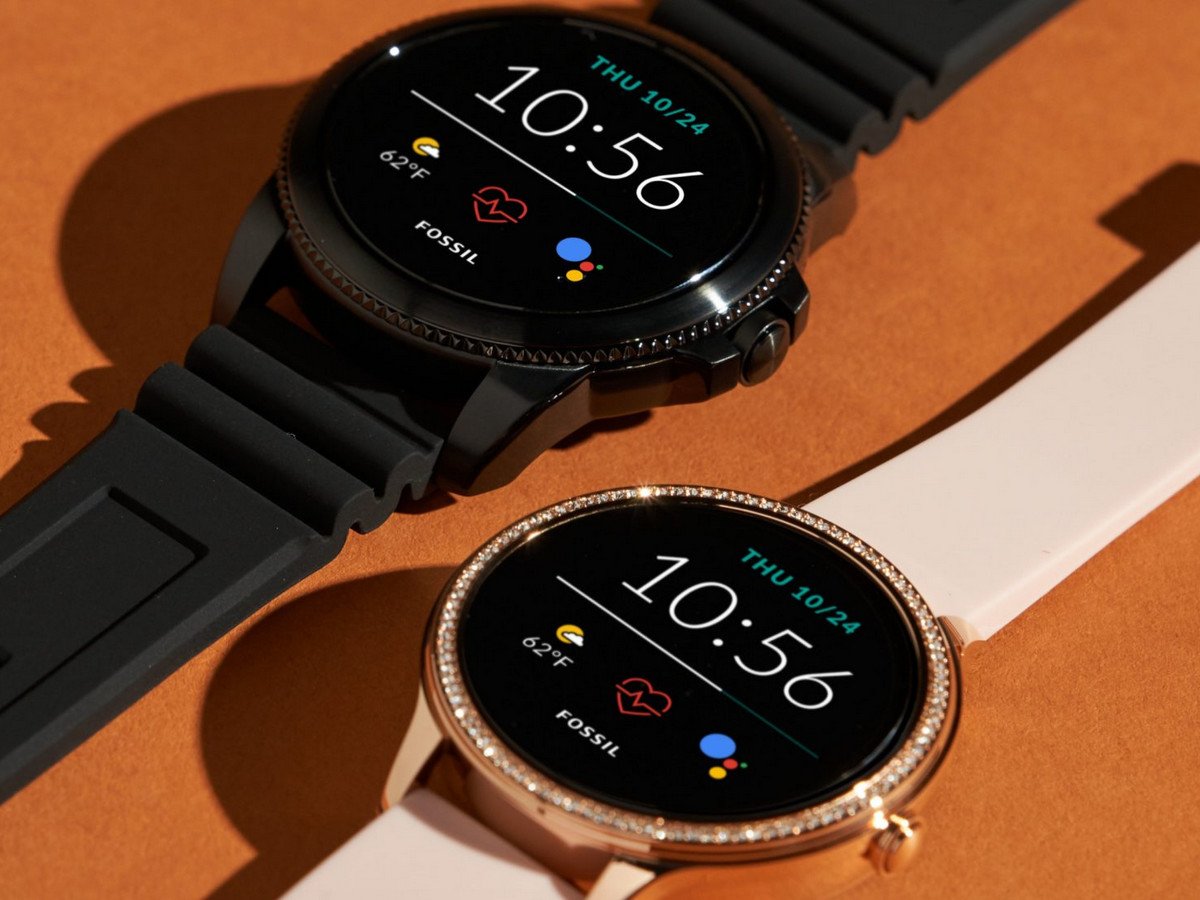
Fossil is one of the few Wear OS smartwatch makers to release high-quality devices continually, so it's understandable if you're wondering about getting the Fossil Gen 5E or regular Gen 5 smartwatch this Black Friday. Both watches offer very similar styles, technologies, and each runs Google's Wear OS software with a few tweaks from Fossil.
Fossil released the original Gen 5 line of watches in mid-2019, and the Gen 5E dropped in October 2020 with a few internal changes as well as new designs — not to mention a lower price. There are many similarities between these two watches that can make choosing one difficult. Here are five reasons why you should save some money and go with the Fossil Gen 5E over the Gen 5.
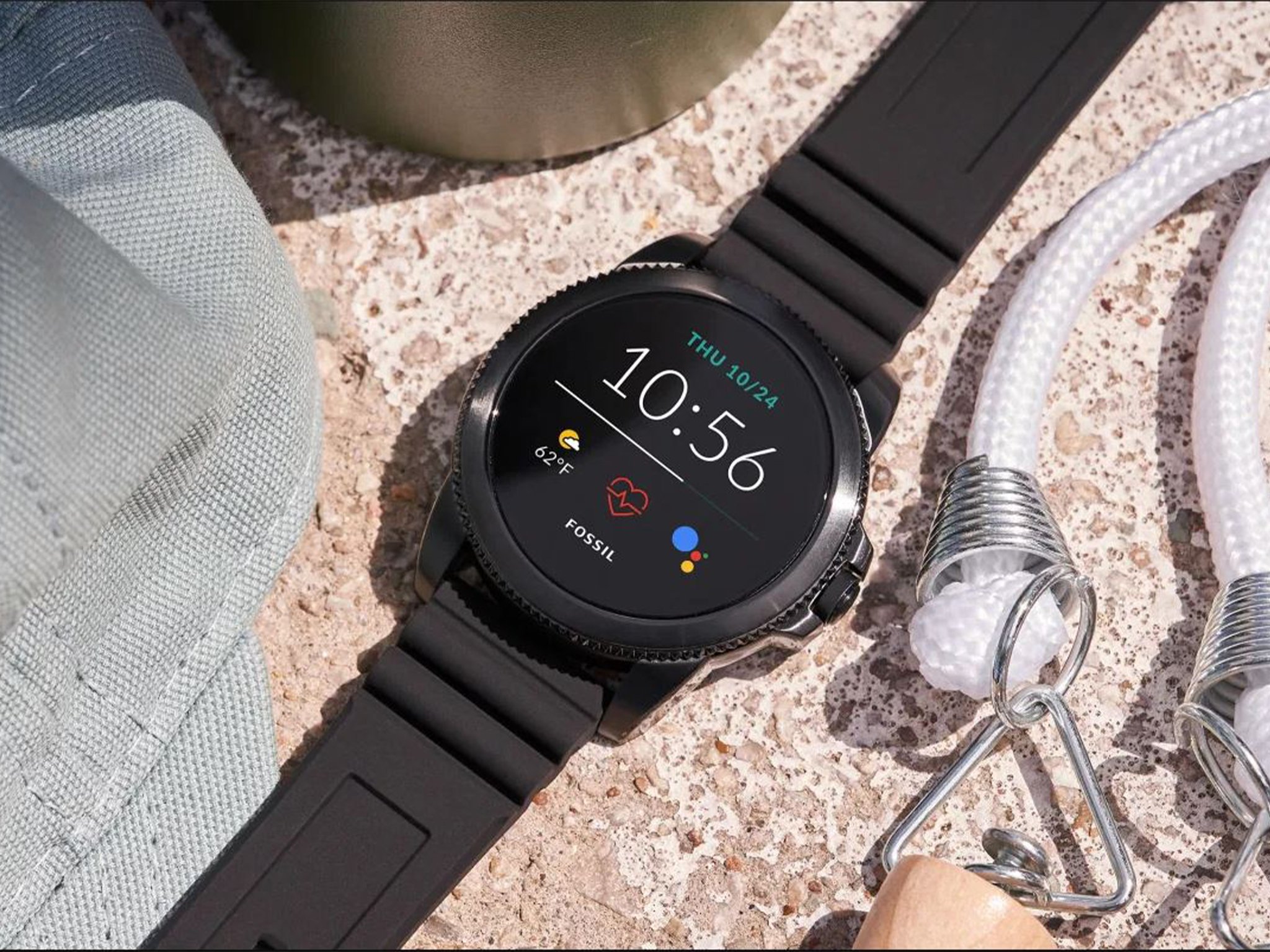
The Fossil Gen 5E brings a classic look to the world of smartwatches. You'll be able not to track all of your workouts and stay connected to your phone, never to miss another message or call.
1. Both watches are running the same processor
Many smartwatches out there are still running the older Qualcomm Snapdragon 2100 processor, and both the Gen 5E and Gen 5 use the newer 3100 option. No, this isn't the absolute latest SoC out there (that belongs to the 4100 series) but it's still a reliable chipset.
Generally, when a company decides to release a less expensive version of a previous device, it will save money by using a less powerful or cheaper piece of hardware like the processor. That's not what happened with the 5E. The 3100 offers solid daily performance, and due to the additional co-processor, it also brings improved battery life. This means that you won't have to sacrifice usability or power because you wanted to save some money.
2. You get a choice in case sizes
The Fossil Gen 5 is offered in many colors and style options, but all of them share the same 44mm case size. While 44mm isn't massive, it may be a bit on the larger size for some people. Unfortunately, the Gen 5 doesn't offer anything smaller for those who want or need a timepiece that isn't going to take up their whole wrist.
In the Gen 5E, Fossil brought some new styles out and a choice in case sizes. For those who still want a bigger watch, there is still a 44mm option available, and if you prefer something a little smaller, you can opt for the 42mm. When Fossil made the smaller case size available, it did so without shrinking the display.
Each watch offers the same 1.28-inch AMOLED full-color display. Fossil accomplished this by narrowing the bezels surrounding the screen to not reduce the display size. Both watches use standard bands with a 22mm on the larger smartwatch and 18mm for the smaller. By going with the Fossil Gen 5E, you get a great looking device that also gives you a choice in sizes.
3. It has the same durability and fitness features
Other features typically stripped away from a product when released at a lower price are durability and software features. The Fossil Gen 5E maintains all of that. With a water resistance rating of 3 ATM, this smartwatch can handle more than just a mist. This rating means that it's capable of surviving water pressure equal to 30 meters.
Because Fossil took the extra effort to build this level of resistance into the 5E, Fossil made use of it in software. The suite of workouts that can be tracked using the Gen 5E include swimming, running, biking, sleep tracking, and more. By keeping all of the same fitness tracking features from the software in the more expensive Gen 5, you won't have to sacrifice your active lifestyle because you are wearing a smartwatch.
4. Nearly identical internal hardware
With the 5E, onboard GPS didn't crossover. In rare instances, not having location services built directly into the watch may affect the 5E's usage in certain situations. Because both the Gen 5 and 5E need to be connected to a phone for data anyway, the latter will simply use the phone for location services.
This means that you can still see your workout distance and other location-based info, like maps, on the Fossil Gen 5E with no problems. The 5E also has a speaker and microphone for calls, music, Google Assitant, and more, to round out a capable device. NFC has also been included for use with Google Pay so you can make contactless payments. Fossil also kept the heart rate sensor, accelerometer, gyroscope, and off-body detection.
One of the biggest and one of the essential hardware retentions was the 1GB of RAM. Many Wear OS watches use less RAM to cut costs, but while this saves the manufacturer money, it costs you in performance. It was found years ago that anything less than 1GB RAM in a Wear OS smartwatch meant that nearly all facets of usability were deeply affected. So in the case of the Gen 5E, you can save money while also getting the performance you want.
5. Cost
Despite all of the similarities, the biggest difference is still cost. You get virtually the same device, but save yourself some money. The value proposition in the Fossil Gen 5E over the Gen 5 becomes more apparent as you stack up everything that is the same and what is different.
By sharing nearly identical internal hardware and the same software experience from the Gen 5, then offering different case sizes and a lower price for the 5E, you can get a great Wear OS smartwatch experience and save money. Who doesn't want to keep some extra cash in their wallet? This sentiment rings especially true during the holidays. Don't lose out on buying a gift for someone because you overspent on the Fossil Gen 5. Go with the 5E and make your money go farther.
The Fossil Gen 5E brings a classic look to the world of smartwatches. You'll be able not to track all of your workouts and stay connected to your phone, never to miss another message or call.
from Android Central - Android Forums, News, Reviews, Help and Android Wallpapers https://ift.tt/3m5u1gK
via IFTTT
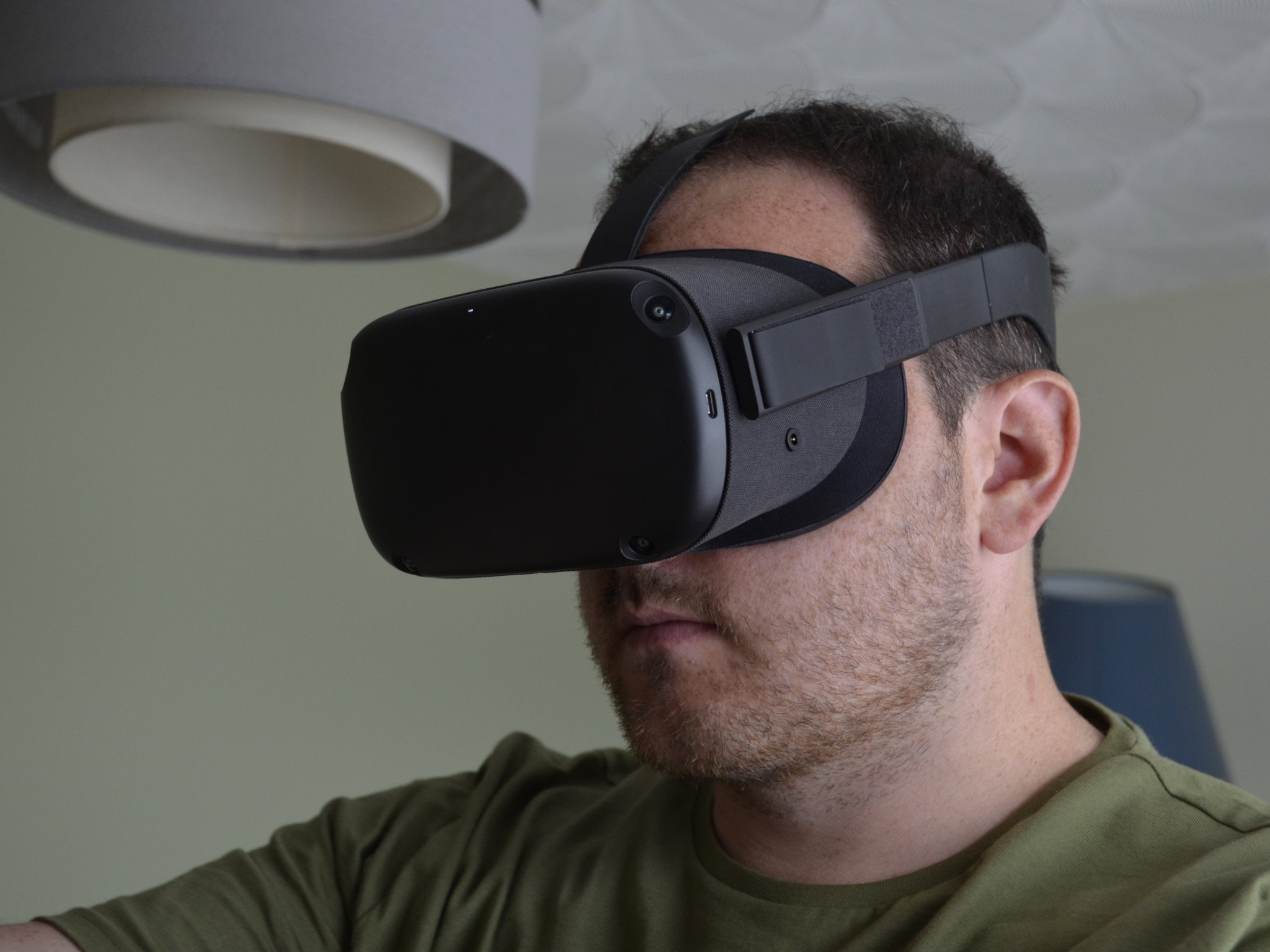
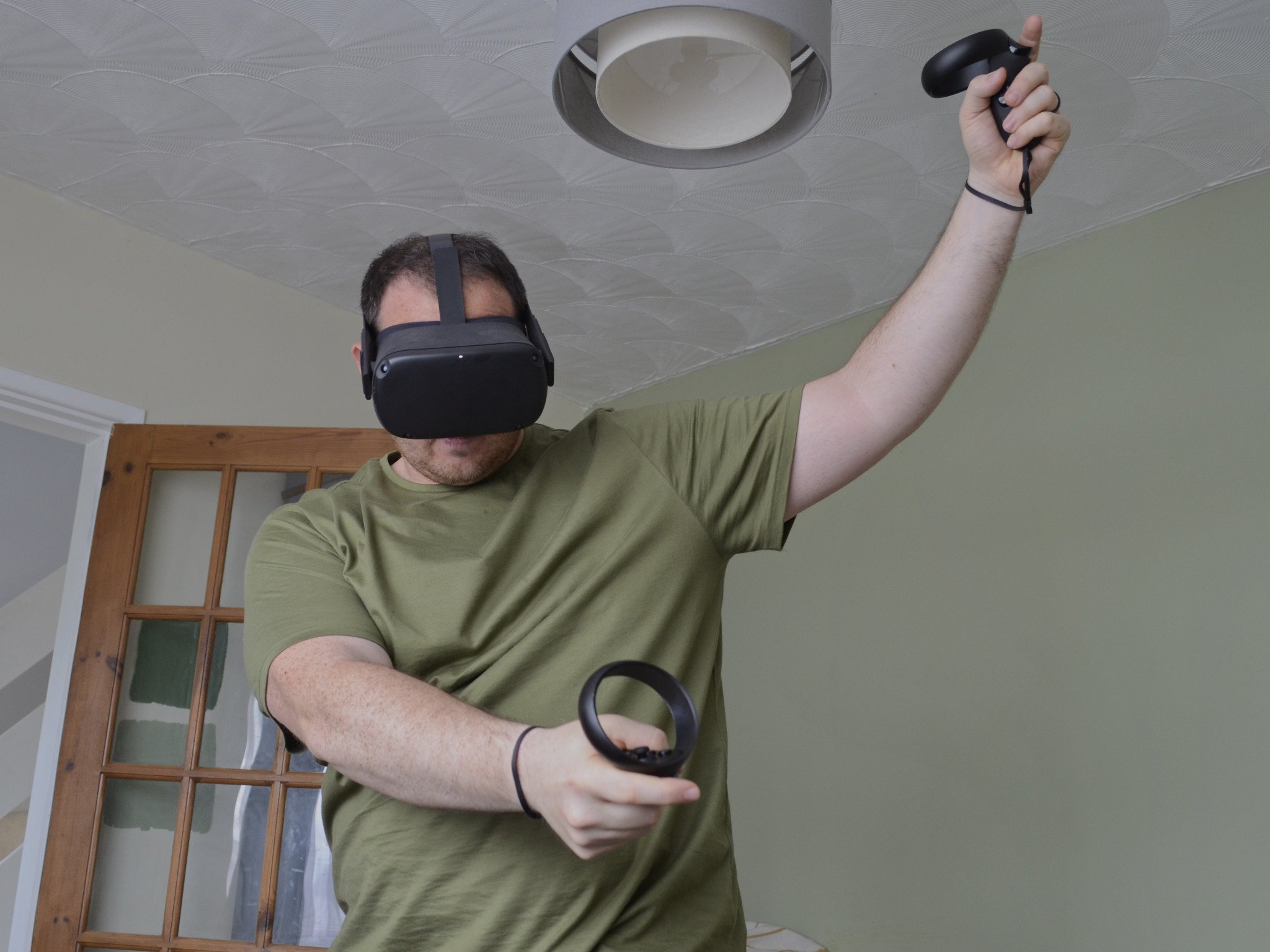
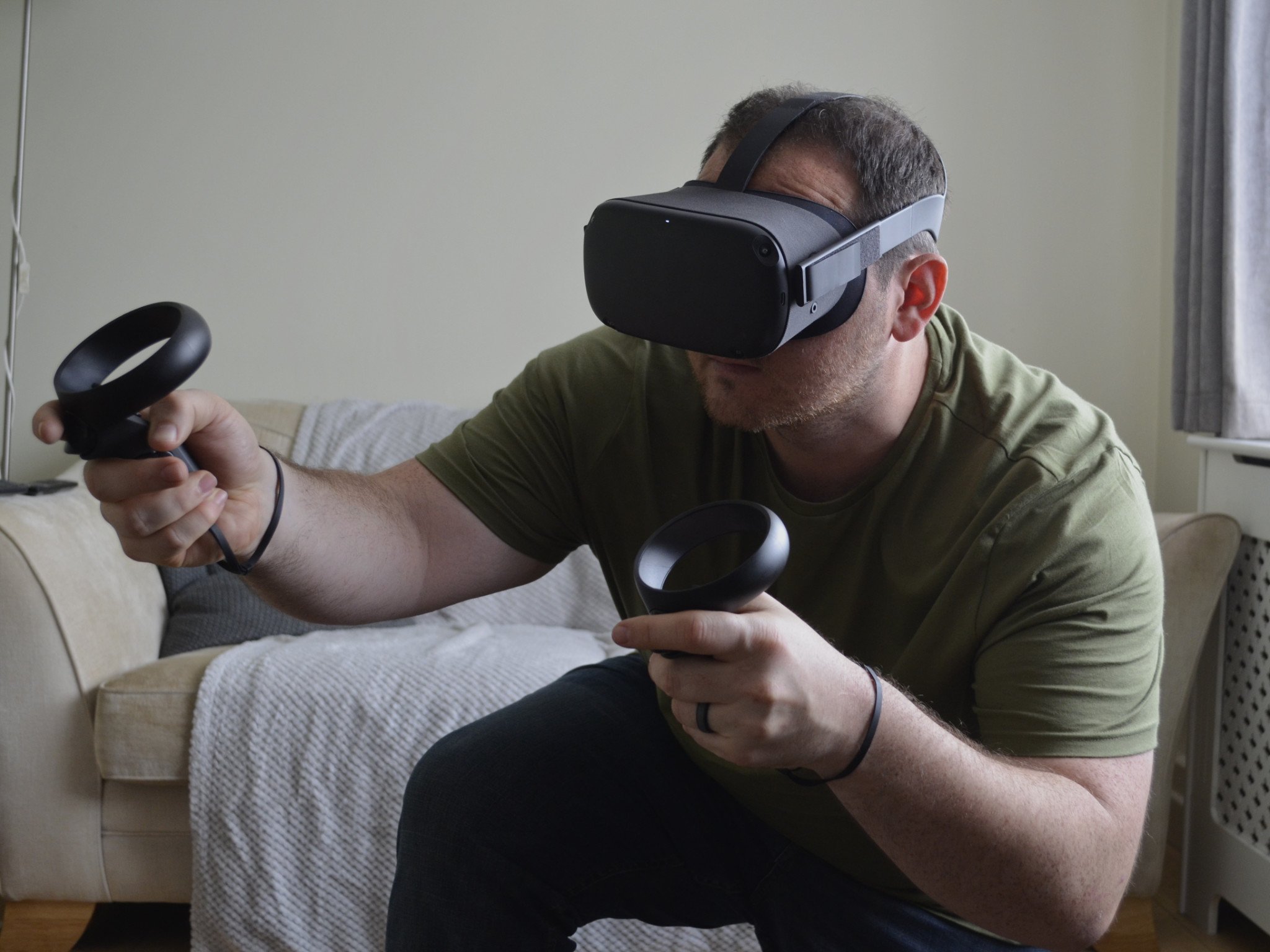
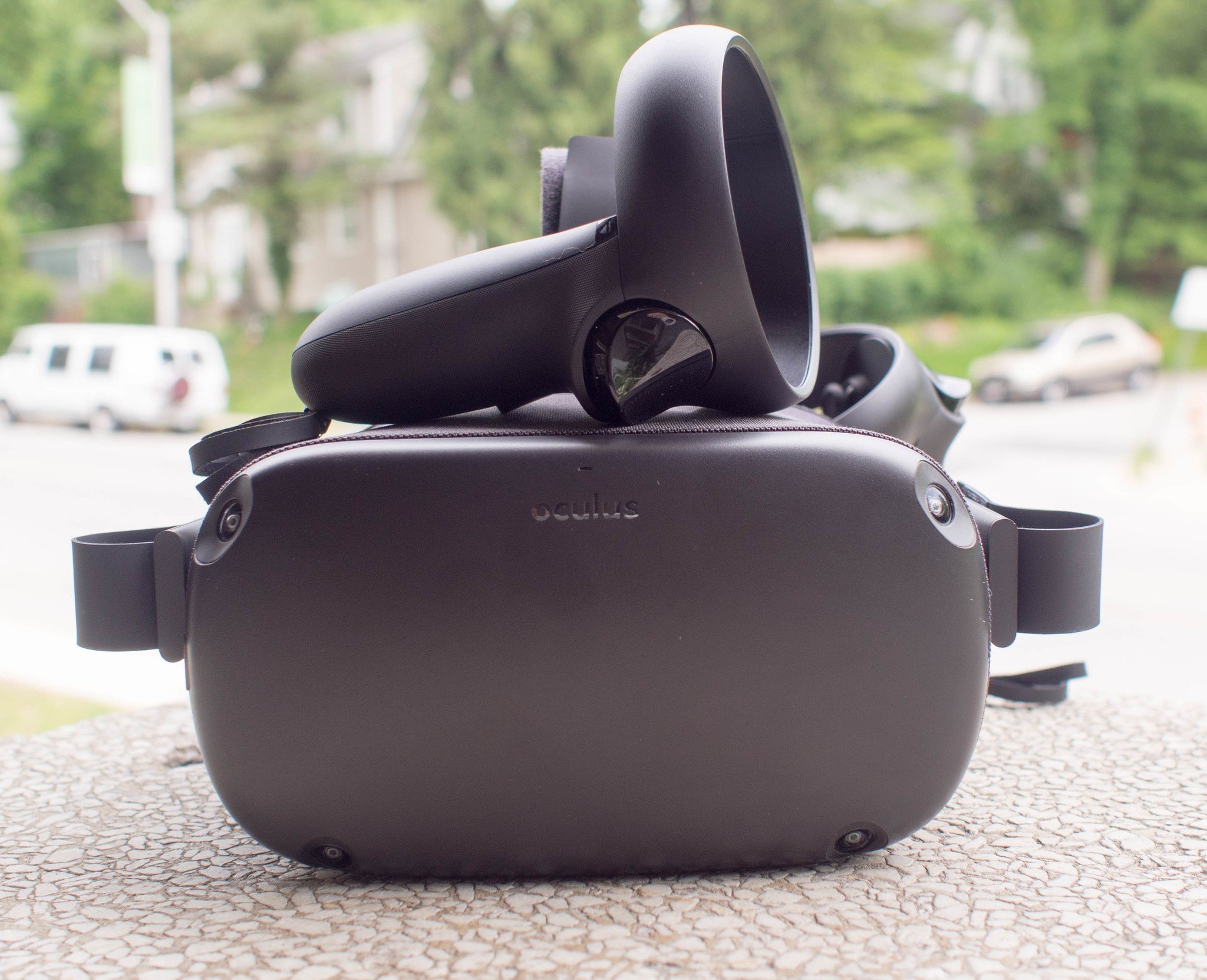
The Oculus Quest allows you to game and enjoy media within VR without any wires or external sensors.
The Oculus Quest is an entirely wireless virtual reality headset. It's unique in that it can track your movements in any direction without the need for any external sensors or a connected PC. The result is a liberating VR experience in which you can swing, duck, twist, and dance away without worrying about getting tangled up.
The Oculus Quest was an excellent headset at its launch and still delivers a good VR experience, but it's outshined by its successors, the Oculus Quest 2. The Oculus Quest 2 is more powerful, lighter, and supports better Oculus Quest accessories. If you already have an Oculus Quest, we have a post comparing the headsets to help you decide if it's worth upgrading to the Oculus Quest 2.
If you have the original Oculus Quest and want to know more about it, then continue reading.
The Oculus Quest is a standalone VR headset. That means you don't need a PC or phone to use it, and you don't have to duck and dodge around wires. As a result, you can bring VR almost anywhere and immerse yourself in gameplay.
Check out our full review!
The Oculus Quest is an immersive and liberating VR experience. In our review of the Oculus Quest, we said that it "felt like this is how virtual reality was always supposed to be." The lack of external sensors or wires makes it easy to jump straight into VR and share it with your friends.
What is Oculus Quest?
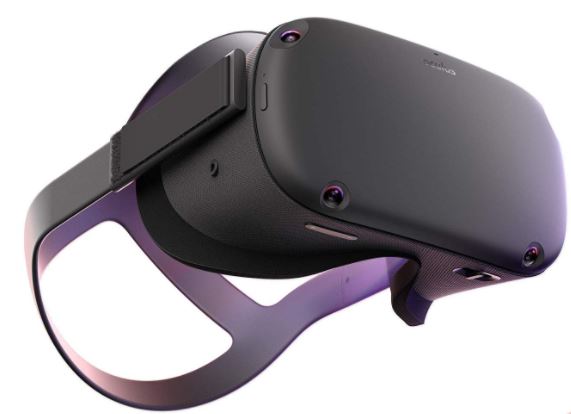
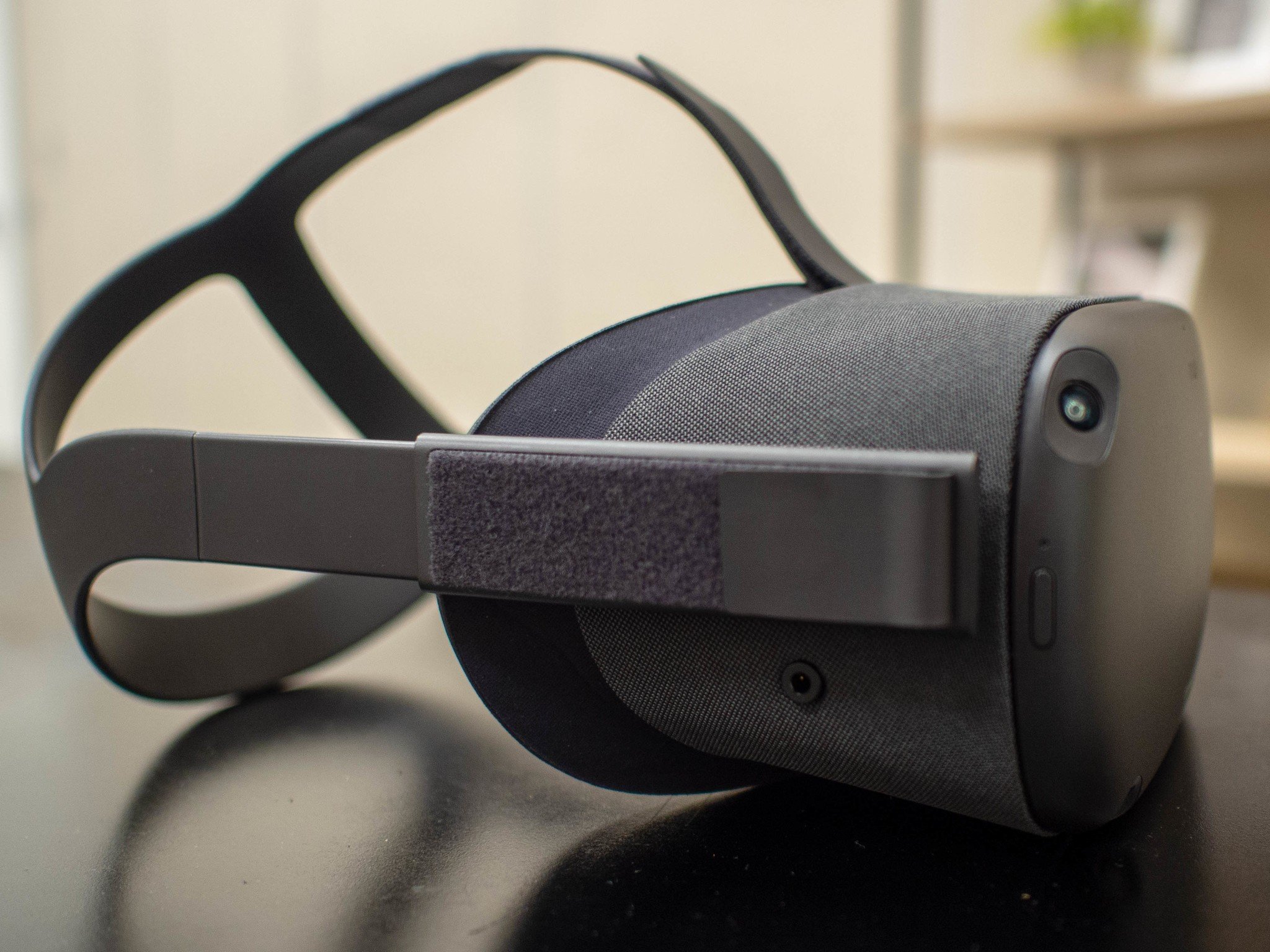
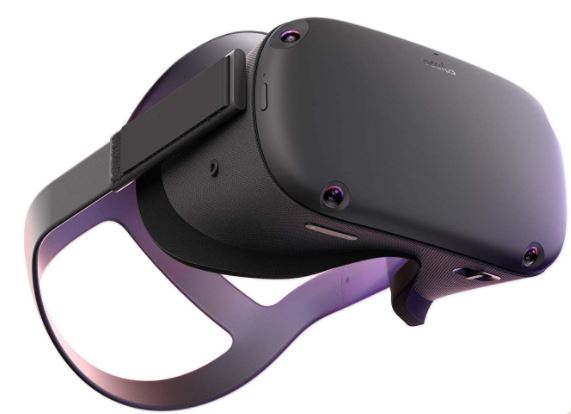
The Oculus Quest is a completely wireless virtual reality headset. It doesn't need to be tethered to a PC like other powerful VR headsets and doesn't require a phone like some mobile VR devices. It features six degrees of freedom (6DoF), meaning it can track your movements up, down, left, right, forward, and backward. It doesn't require any external sensors like the original Oculus Rift or HTC Vive. Instead, it has sensors built into the headset. It also supports two updated Touch controllers, meaning it can be used to play popular gaming titles that require two hands, such as Beat Saber.
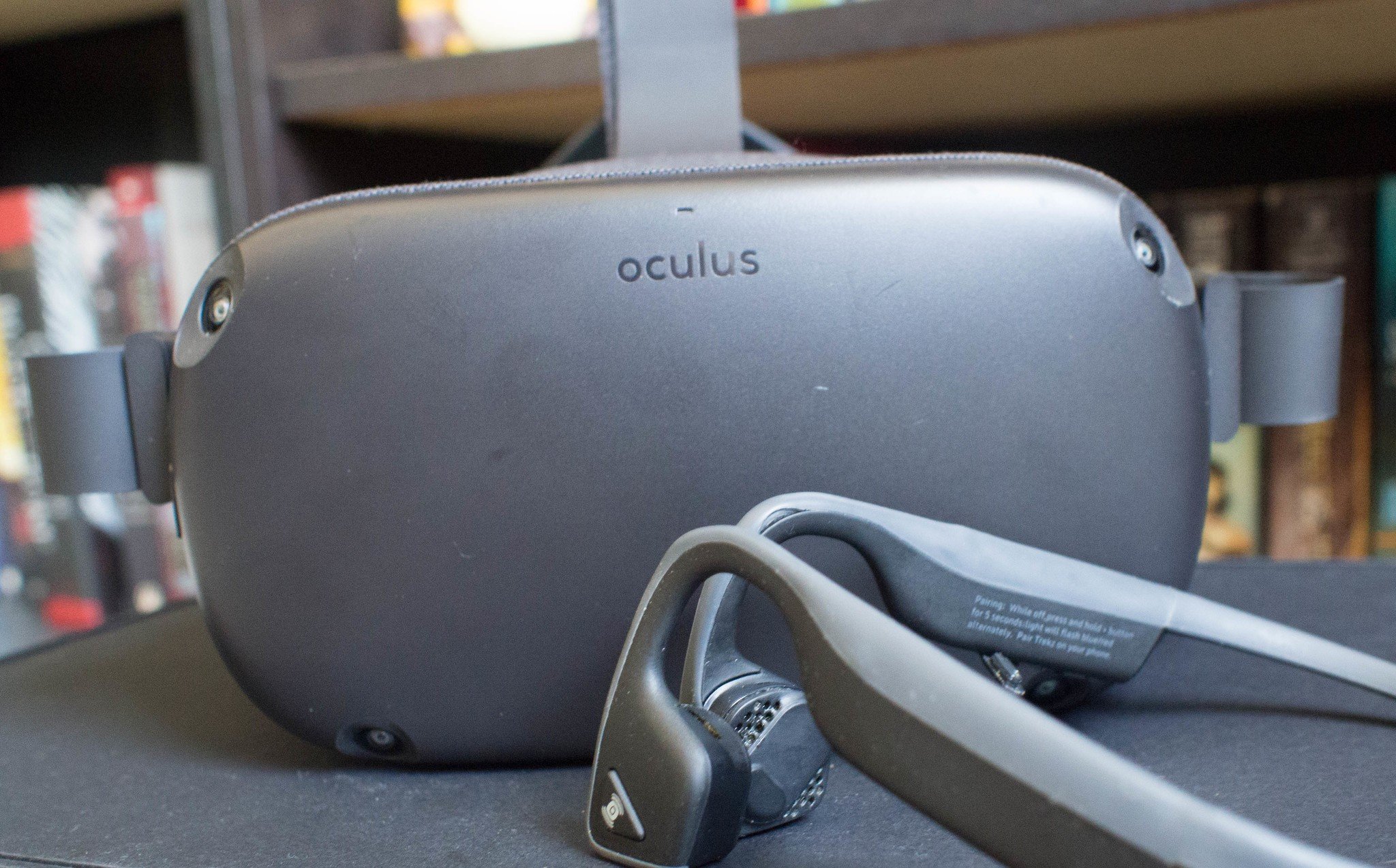
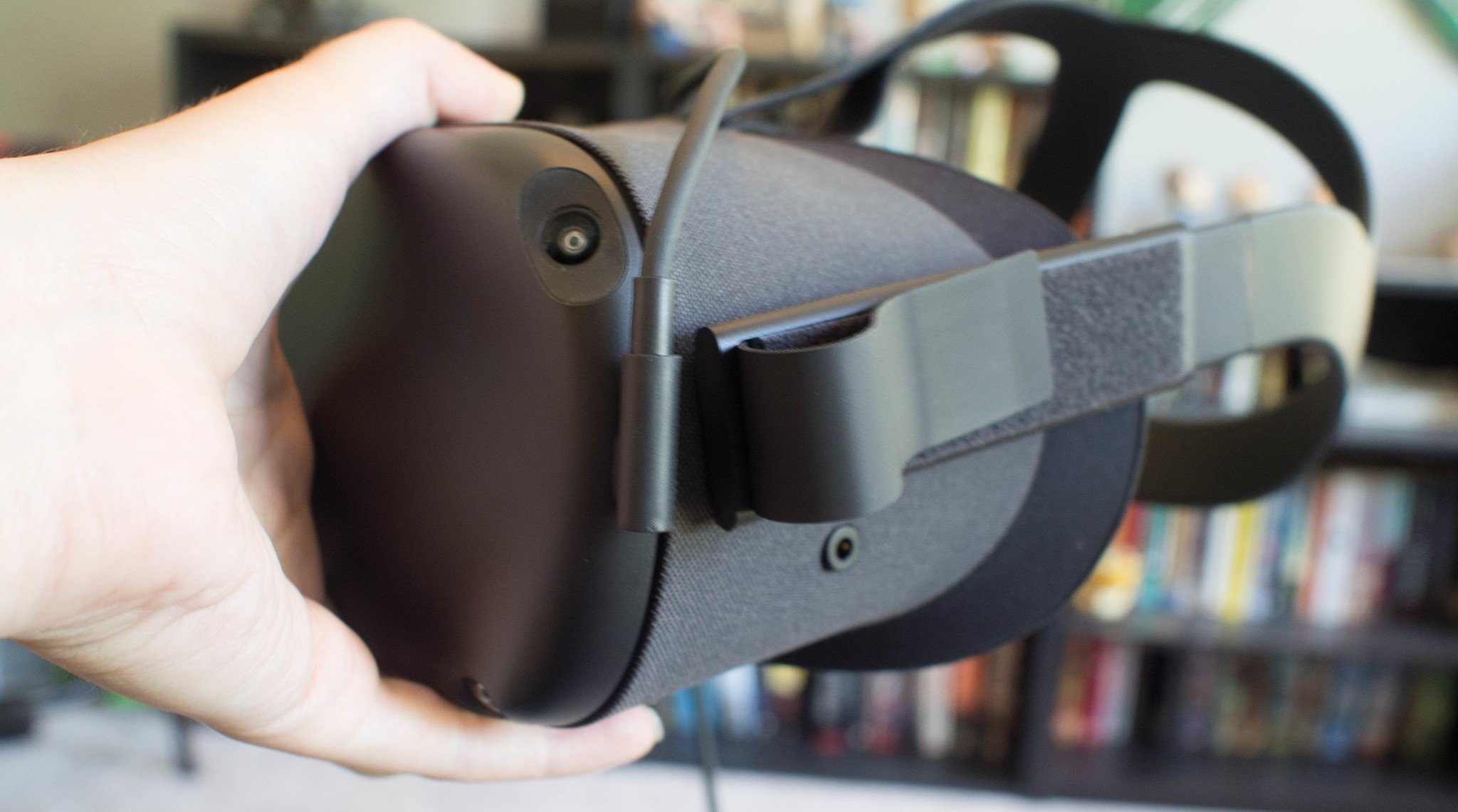
Spatial tracking from within the headset means you can move around a room-scale setup just like you can now in Rift, Vive, or Windows Mixed Reality. A camera in each corner of the headset (total of four) track space and motion controllers from the inside out. The Quest uses the same optics as the Go for a display resolution of 1,600 x 1,400 for each eye, but here you'll be able to make lens-spacing adjustments on the fly. Also, like the Go, Quest has a built-in audio system that delivers 3D sound without the need for bulky headphones. A headset jack is included if you'd like to use separate hardware, and charging is handled with a USB-C port.
All the necessary hardware — including the processor, RAM, storage, and rechargeable battery — is worn on your head. As for an operating system, Quest runs on the Oculus OS, a variation of Android.
Where can I buy an Oculus Quest?
The Oculus Quest starts at $399 for the 64GB version. It's available at several major retailers including Amazon, Best Buy, and through the Oculus website. Picking between the 64GB and 128GB version of the Oculus Quest comes down to how you plan to use it. If you plan to do a lot of sideloading or plan to watch a lot of downloaded media content, then you should consider purchasing the larger 128GB version for $499.
How does Oculus Quest tracking work?
Oculus Insight, the new tracking technology from Oculus, is capable of scanning all items in your VR space, including floors, ceilings, walls, rugs, art, windows, and curtains, for an accurate representation of your place in the real world. It looks for edges and corners and other distinct features, then builds a 3D map of the playspace and combines that data with data from the gyroscope and accelerometer to give the headset's position once every millisecond.
The Guardian system is still here to keep you from bumping into walls and furniture, and you'll now be able to save multiple rooms for quick setup. For example, you can save your standard VR play space, and you save your friend's living room for when you visit with the Quest and want to set up quickly.
Since there are no external sensors, the play space for Quest is potentially enormous, though features such as Arena-Scale tracking will come in future updates.
Facebook rolled out an update that allows you to disable Guardian Tracking. While it may seem odd to have the option to disable one of the Oculus Quest's best features, turning it off allows you to use the device in new ways. With Guardian Tracking off, you can use the Oculus Quest in the dark and while lying down. It's also useful for playing supported Oculus Go and Gear VR games. You can also reset the Guardian boundary to make sure it lines up correctly.
How do Oculus Quest controllers work?
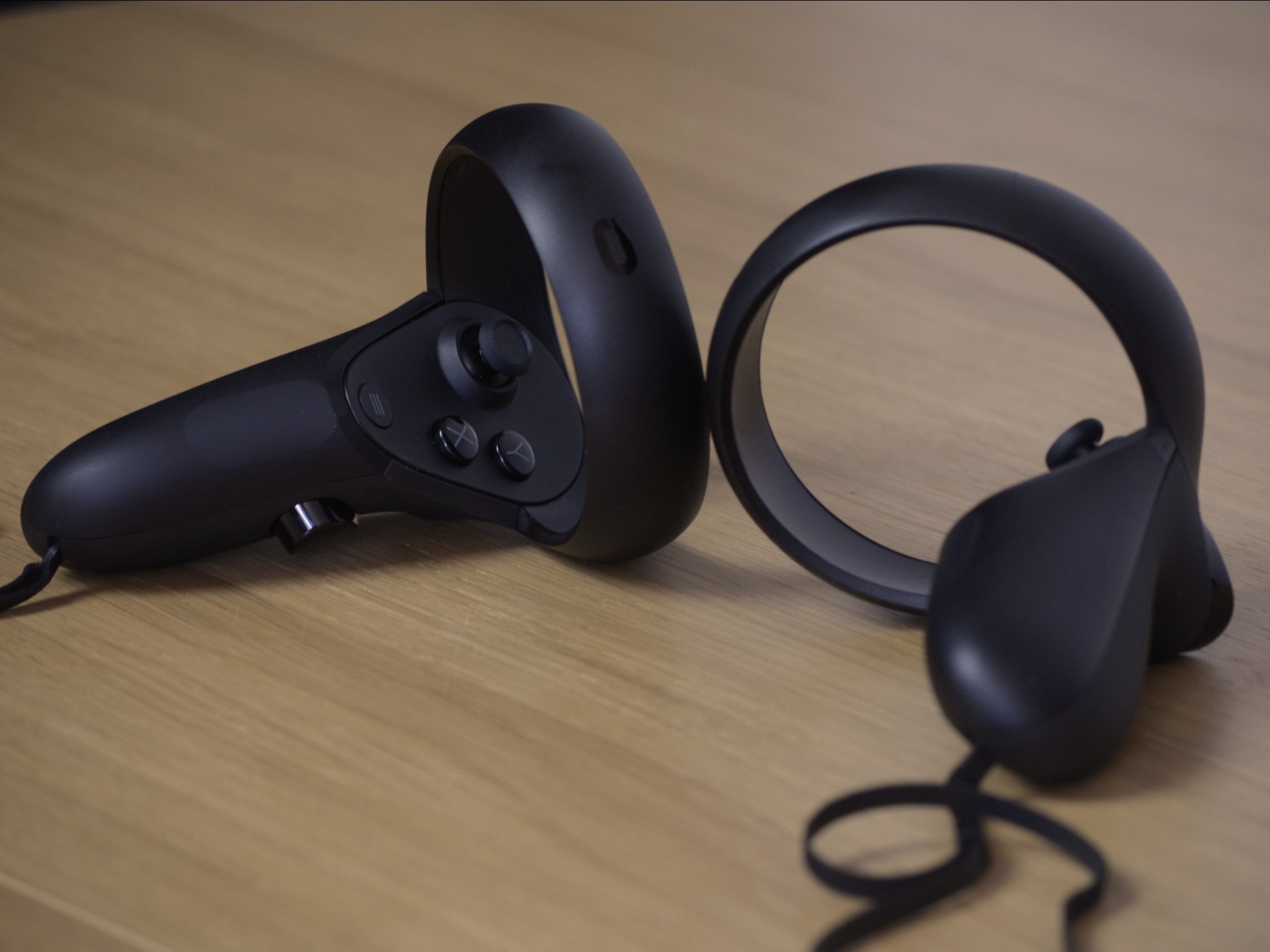
Along with a new headset, Quest is bringing new Touch motion controllers that are also tracked by sensors in the headset. Much like other Oculus Touch controllers, the Quest controllers have a ring covered in IR lights that are tracked. Here, instead of facing down like on current Touch, the rings face up, making them more visible to the cameras in the headset.
The Oculus Quest is one of the easiest VR headsets to set up. It doesn't require any external sensors or a PC to run. You do need a phone for the initial set up process, but after that, the headset runs completely independently. When you first set up your Oculus Quest, the device guides you through the tutorial to sign in to your accounts. It also familiarizes you with the Oculus Guardian system and the basic movements and gestures available on the Oculus Quest.
It's important to keep your Oculus Quest up to date, as Facebook adds significant features in its upgrades for the headset. If you want to sell your Oculus Quest, you should reset it and wipe out all of your data.
Do I need any additional equipment?
One of the best things about the Oculus Quest is that you don't need any additional equipment to use it. Apart from having to replace batteries in the Touch Controllers, everything you'll ever need to run the Oculus Quest is in the box it ships with.
Though all of the required equipment is in the box, there are some helpful add-ons and accessories you can use to enhance the Oculus Quest experience. A magnetic charging cable makes it easier to charge your headset and also makes it safer to use while plugged in because it reduces the risk of damaging the headset.
The accessory that will result in the most significant change in gameplay and immersion is a good pair of headphones. The Oculus Quest has built-in speakers that support directional audio, but if you want to immerse yourself fully, you can pop on some headphones. Just remember that the Oculus Quest doesn't officially support Bluetooth audio, so you'll need a wired set of headphones.
Even though the Oculus Quest is not connected to a PC, it can still run many games that developers can port over from the Oculus Rift. Oculus Quest ports of Rift games can be both impressive and immersive, though discerning eyes will be able to tell the difference between the same game being played on both systems.
The Oculus Quest has an impressive library of games. Many Oculus Rift games and some Oculus Go games have been ported to the Oculus Quest. Shooting games are especially immersive and popular on the Oculus Quest. Its lack of wires means you can spin around and fire at enemies in games like Robo Recall: Unplugged.
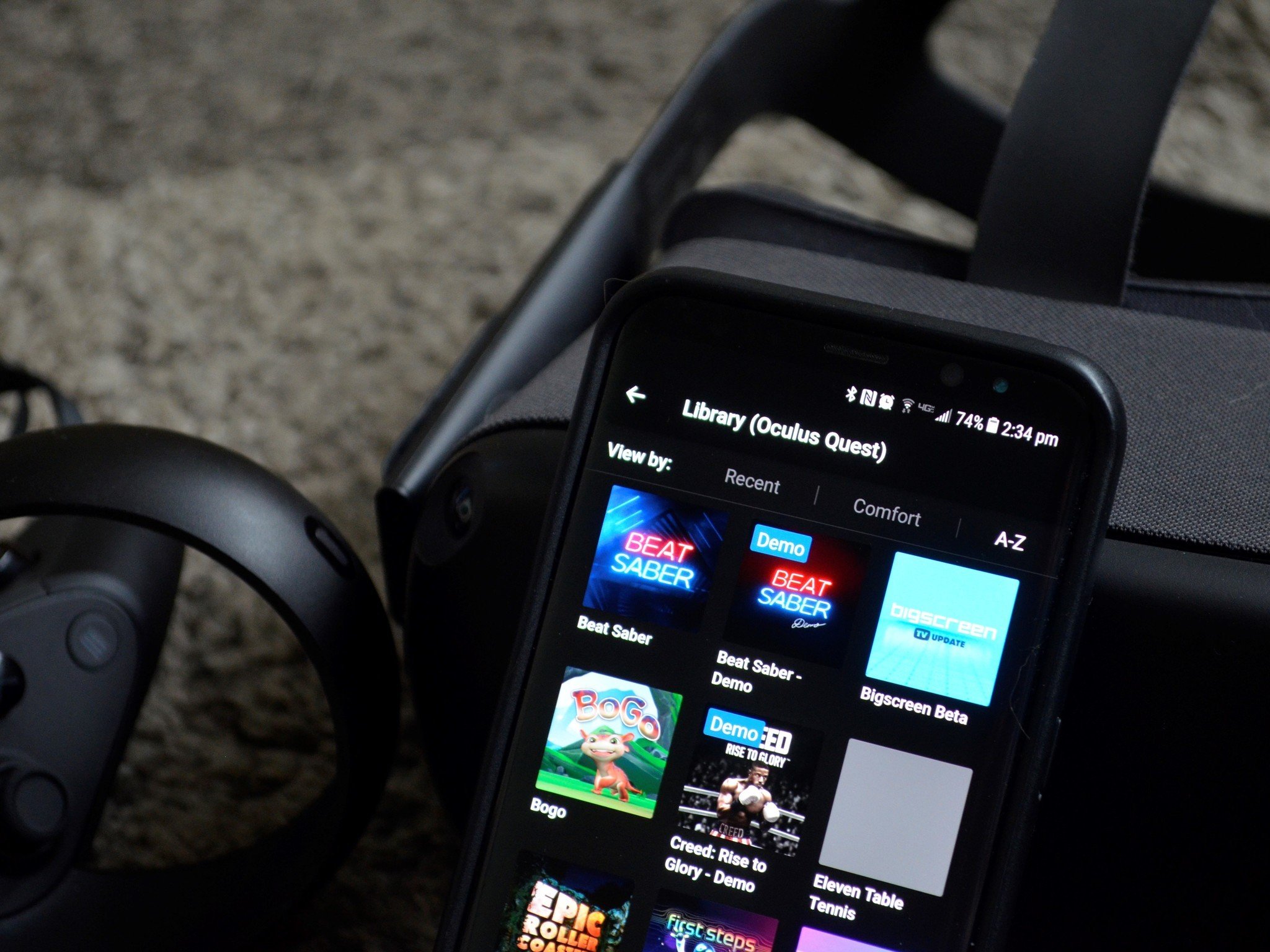
The Oculus Quest also lends itself well to anything with a sword or saber thanks to its support for two Touch Controller. Beat Saber is an incredibly fun game that pairs slicing blocks to the rhythm of music.
There's a growing library of games on the Oculus Quest, and many of them are available for around $20, but here are some good free Oculus Quest games as well.
Is the Oculus Quest good for watching movies and TV?
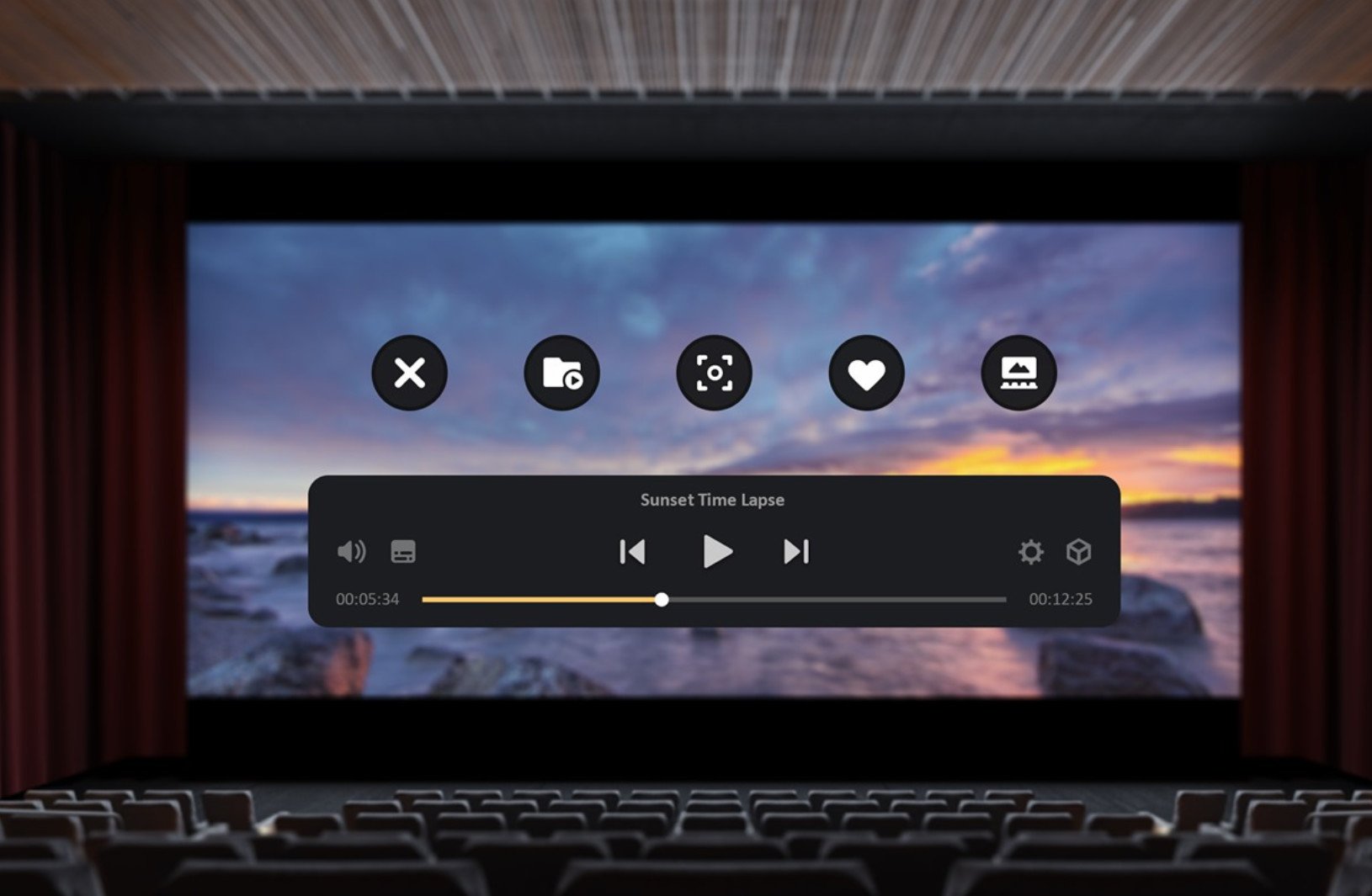
The Oculus Quest has several media apps that allow you to enjoy content on a gigantic virtual screen. Netflix and YouTube have official apps available for the Oculus Quest. You can also watch locally stored media on your headset or stream content to it using an app like SKYBOX VR. You can also watch several other types of content by sideloading Android apps onto the Oculus Quest. The Oculus Quest is an Android device at its core, so there are plenty of apps to choose from. If you sideload the Android version of Netflix, you can download content for offline playback.
Can I sideload apps and games?
While the Oculus Quest has several games and apps available through the Oculus Store, sideloading opens a whole new world to the device. You can sideload media apps like the Android version of Netflix that supports offline media playback, or sideload custom songs onto Beat Saber. Sideloading can also be used to enable SteamVR inside Virtual Desktop.
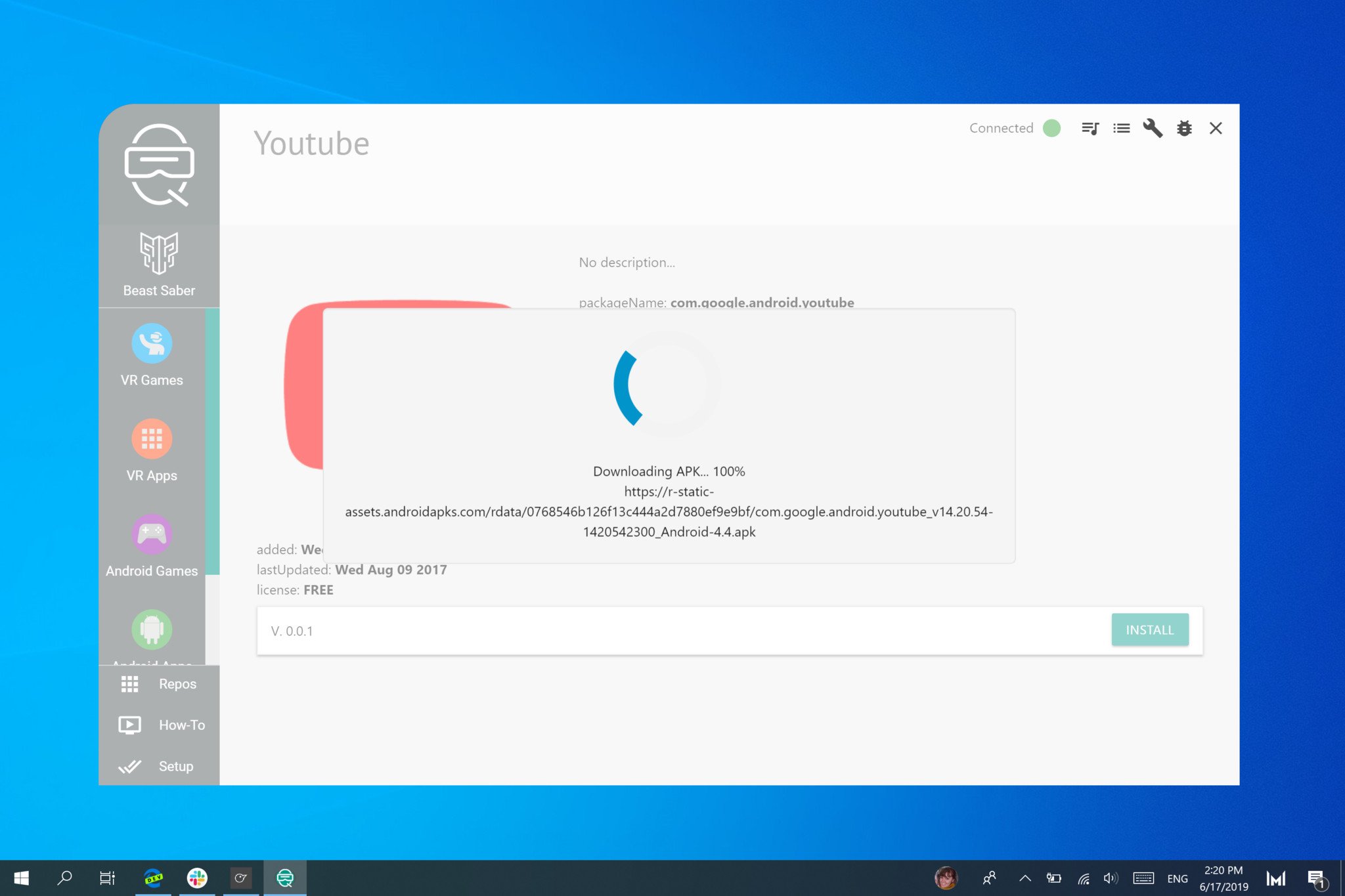
Sideloading initially took quite a bit of effort, but the developers of SideQuest have made it seamless to sideload games onto your Oculus Quest. SideQuest is a program you install on your PC that allows you to drag and drop APKs onto your Oculus Quest. It's also an incredible tool for sideloading custom songs and content onto Beat Saber.
Can I connect the Oculus Quest to other devices?
The Oculus Quest is an excellent device on its own, but it can also connect to several types of devices to provide different experiences. If you want to show your friends and family what's going on inside of your headset, you can cast your Oculus Quest to a Chromecast. This is excellent for parties because people can watch your gameplay instead of watching you flail your arms around.
You can also stream PC games and apps to the Oculus Quest through Virtual Desktop. This app allows you to use your PC inside a virtual environment to enjoy a wide variety of content. You can also sideload the ability to stream SteamVR games to your Oculus Quest.
The Oculus Quest can also be connected to a computer to download video files from recorded gameplay. It's simple and just involves plugging your headset into your computer with a USB-C cable.
The Oculus Quest doesn't require much maintenance, but there are some essential things to remember to keep it running well. The most important thing to know is that sunlight can damage the screen inside the headset in just a few seconds. It's tempting to take the Oculus Quest outside to take advantage of a larger play area, but the lenses of the Oculus Quest are magnifying glasses. If sunlight hits the lenses, it can damage the display. When storing the Oculus Quest and transporting it, you should always use a case and/or a lens cover. Additionally, you shouldn't use the Oculus Quest in direct sunlight or leave it in a location where the sun might hit the lenses.
The Oculus Quest has two Touch Controllers that allow you to interact with games and apps. These controllers aren't as robust as the Touch Controllers that shipped with the original Oculus Rift. While I've hit a counter on accident and not seen any damage, many users have cracked the tracking ring on their Touch Controllers by dropping them. You should always use the wrist straps for the Touch Controllers and clear out your playing area. The Oculus Guardian system isn't perfect, and it also doesn't track the ceiling or anyone that comes into your play area, so it's important to be careful. If you do break a Touch Controller, you can order individual replacements.
The Oculus Quest is a standalone VR headset. That means you don't need a PC or phone to use it, and you don't have to duck and dodge around wires. As a result, you can bring VR almost anywhere and immerse yourself in gameplay.
from Android Central - Android Forums, News, Reviews, Help and Android Wallpapers https://ift.tt/2FCMKzl
via IFTTT
It doesn't look like Motorola has any plans of launching the phone in North America.
What you need to know
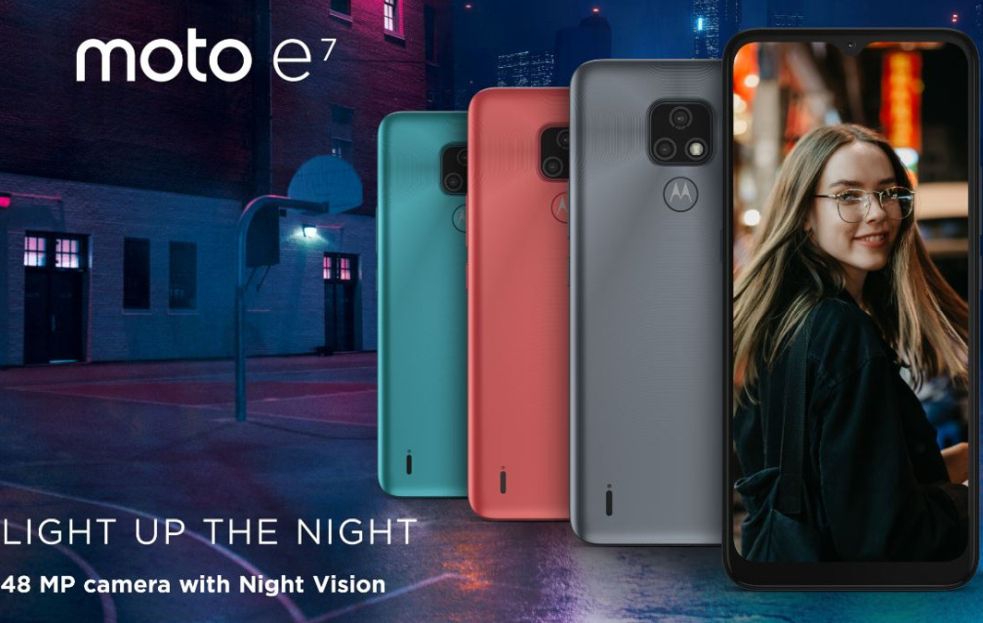
Motorola has quietly unveiled the Moto E7.
The phone features a MediaTek Helio G25 chipset, dual rear cameras, and a 4,000mAh battery.
It has been priced at £99 ($132) in the UK.
Back in September, Motorola unveiled the Moto E7 Plus, a cheap Android phone featuring Qualcomm's Snapdragon 460 chipset and a large 5,000mAh battery. The company has now announced the vanilla Moto E7, which, as you would expect, isn't as impressive as the Plus model in most areas.
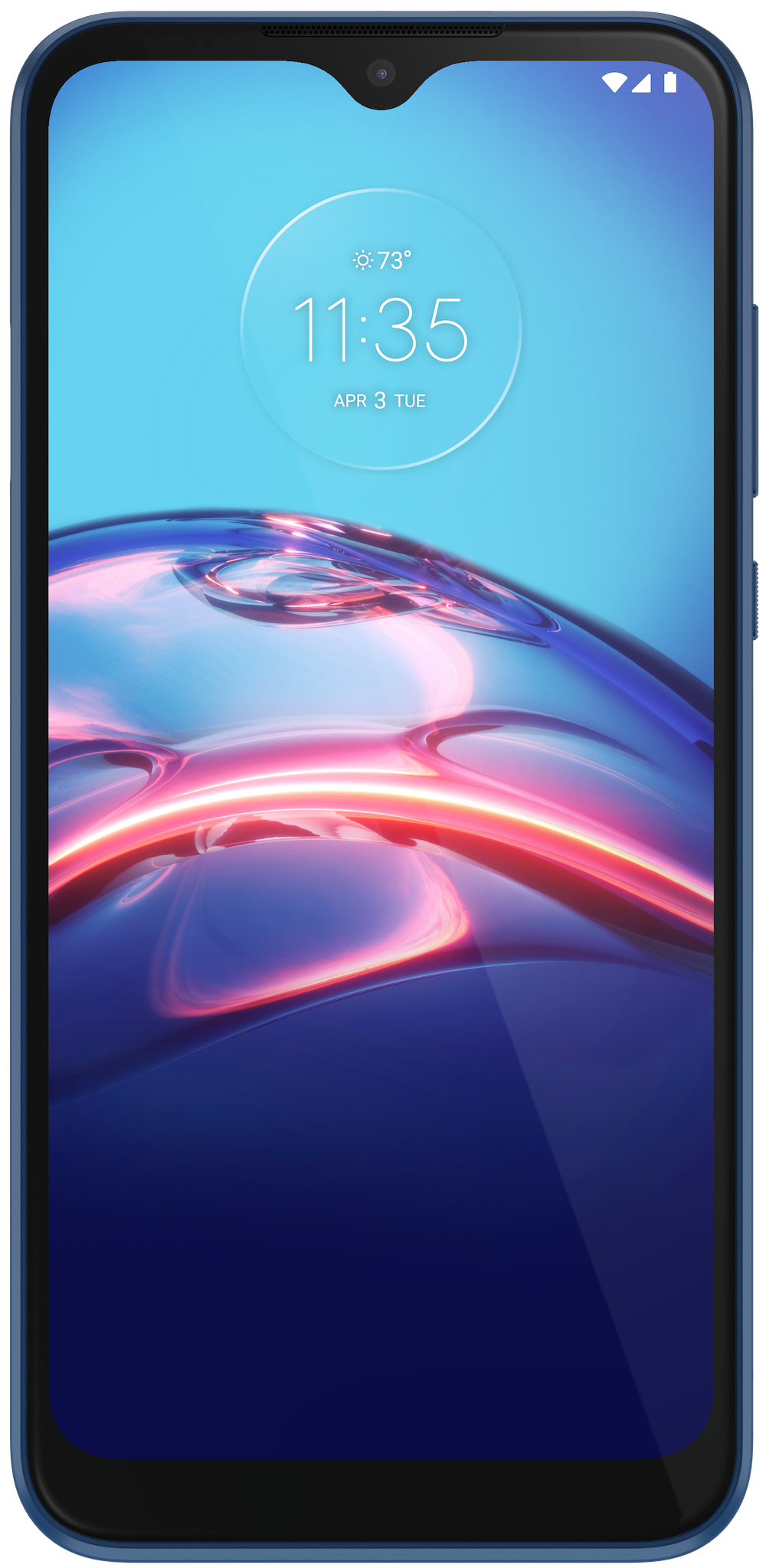
The Moto E7 sports a 6.5-inch HD+ display with a tall 20:9 aspect ratio. It is powered by MediaTek's Helio G25 chipset, coupled with 2GB of RAM and 32GB of storage. Like the Moto E7 Plus, the vanilla Moto E7 is equipped with a dual-camera setup at the rear. You get a 48MP primary sensor and a 2MP macro lens. For selfies, the phone has a 5MP camera housed within the waterdrop notch at the top of the screen.
Keeping the lights on is a 4,000mAh battery, with support for only 10W charging speeds. The phone also offers a dedicated Google Assistant button, a water-repellent design, and a USB Type-C port at the bottom. On the software side of things, the Moto E7 will ship with Android 10 out of the box, instead of Android 11.
As per Android Authority, the Moto E7 will soon be available in the UK for £99 ($132). The entry-level phone is also going to be released in select markets across Europe, Asia, Latin America, and the Middle East in the coming weeks.
The Moto E (2020) is one of the most affordable full-featured Android phones currently available. It offers decent specs, a water-repellent design, and happens to be compatible with all popular U.S. carriers.
from Android Central - Android Forums, News, Reviews, Help and Android Wallpapers https://ift.tt/3lW5wm5
via IFTTT
The DiskStation 220j is the ideal budget option if you're interested in a Plex media server or need a NAS for backing up photos.
A network-attached storage (NAS) enclosure is basically a home server that lets you stream media files across your home network, back up photos and files from phones and other devices, and so much more. If you're interested in setting up a Plex server or are looking for an offline Google Photos alternative, a NAS is the perfect way to get started.
Synology is the largest manufacturer of NAS enclosures, and the brand offers plenty of models across price points. In particular, its budget models are ideal for first-time buyers looking to pick up a home server for the first time. The DiskStation DS220j launched earlier this year, offering exciting upgrades from its predecessor, the DS218j.
The DiskStation DS220j is a 2-bay NAS enclosure that can hold up to a total of 32TB of storage, and you get USB 3.0 ports and Gigabit Ethernet connectivity. The NAS is available for just $170, making it an enticing option in the budget segment. So let's see what the NAS has to offer and whether it is ideal for your use case.
Synology DiskStation DS220j
Bottom line: TheDiskStation DS220j is the ideal option for first-time NAS buyers looking to set up a home server. The NAS enclosure has outstanding software features, delivers robust performance in day-to-day use, and can be used as a Plex media server or an offline Google Photos alternative. Combine that with the value on offer, and you get one of the best deals in this category.
The DiskStation DS220j is a budget 2-bay NAS enclosure, with each bay holding up to 16TB of storage. That means you get 32TB of storage across both drive bays, which should be more than enough for most home users. Here's a look at the hardware powering the NAS:
Category
DiskStation DS220j
Internal drive bays
Two (maximum 16TB each bay)
3.5-inch HDD
2.5-inch HDD (via optional mount)
2.5-inch SSD (via optional mount)
32TB of total storage
Network interface
1 x Gigabit Ethernet
USB ports
2 x USB 3.0
CPU
Quad-core 1.4GHz Realtek RTD1296
64-bit
Plex
Yes
4K transcode
No
RAM
512MB DDR4
SSD caching
No
File system
EXT4
Cooling
1 x 92mm fan
18.2dB(A)
Extendable
No
Dimensions
165 x 100 x 225.5mm
Weight
1.94lb
Synology DiskStation DS220j Features
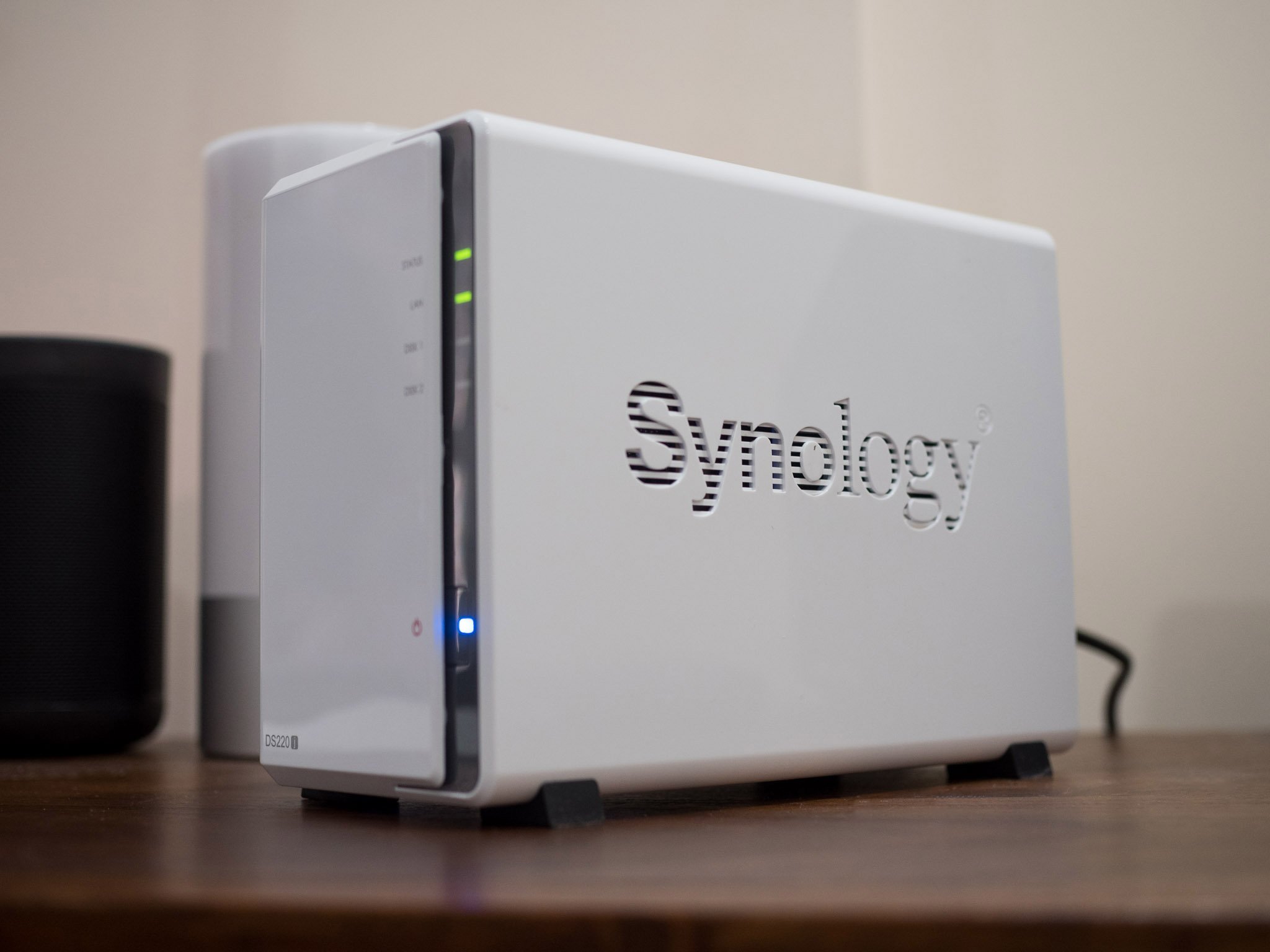
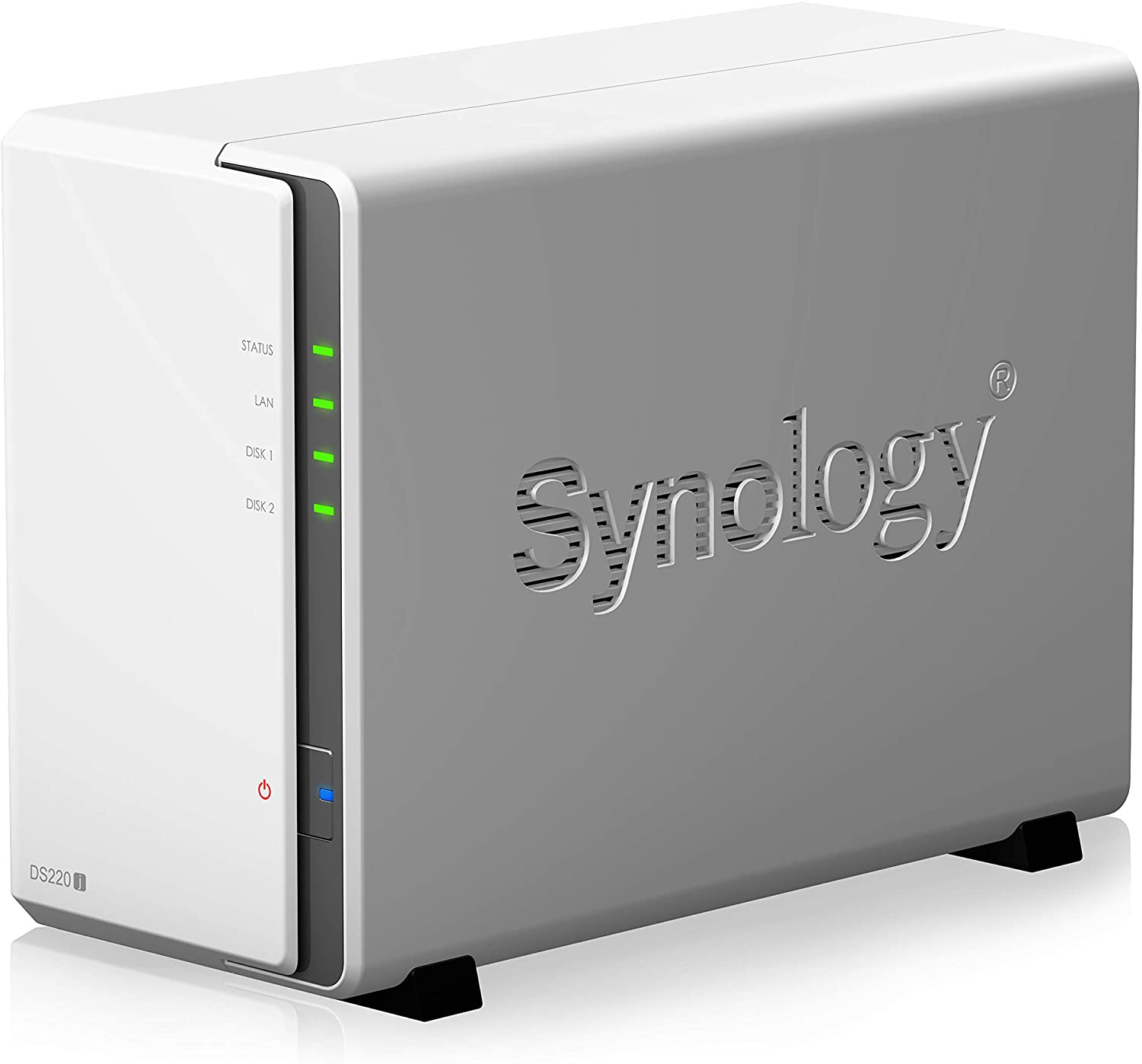
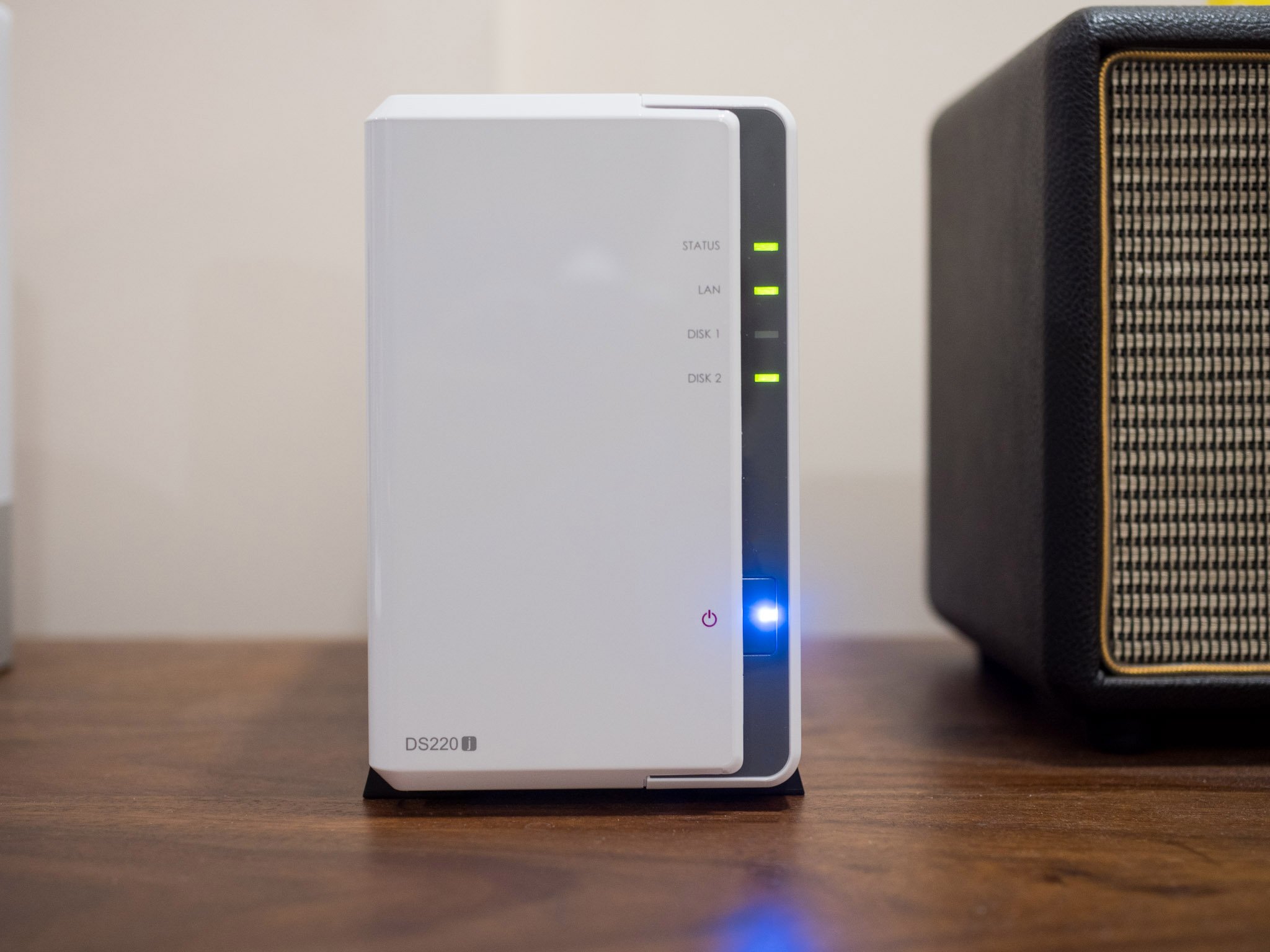
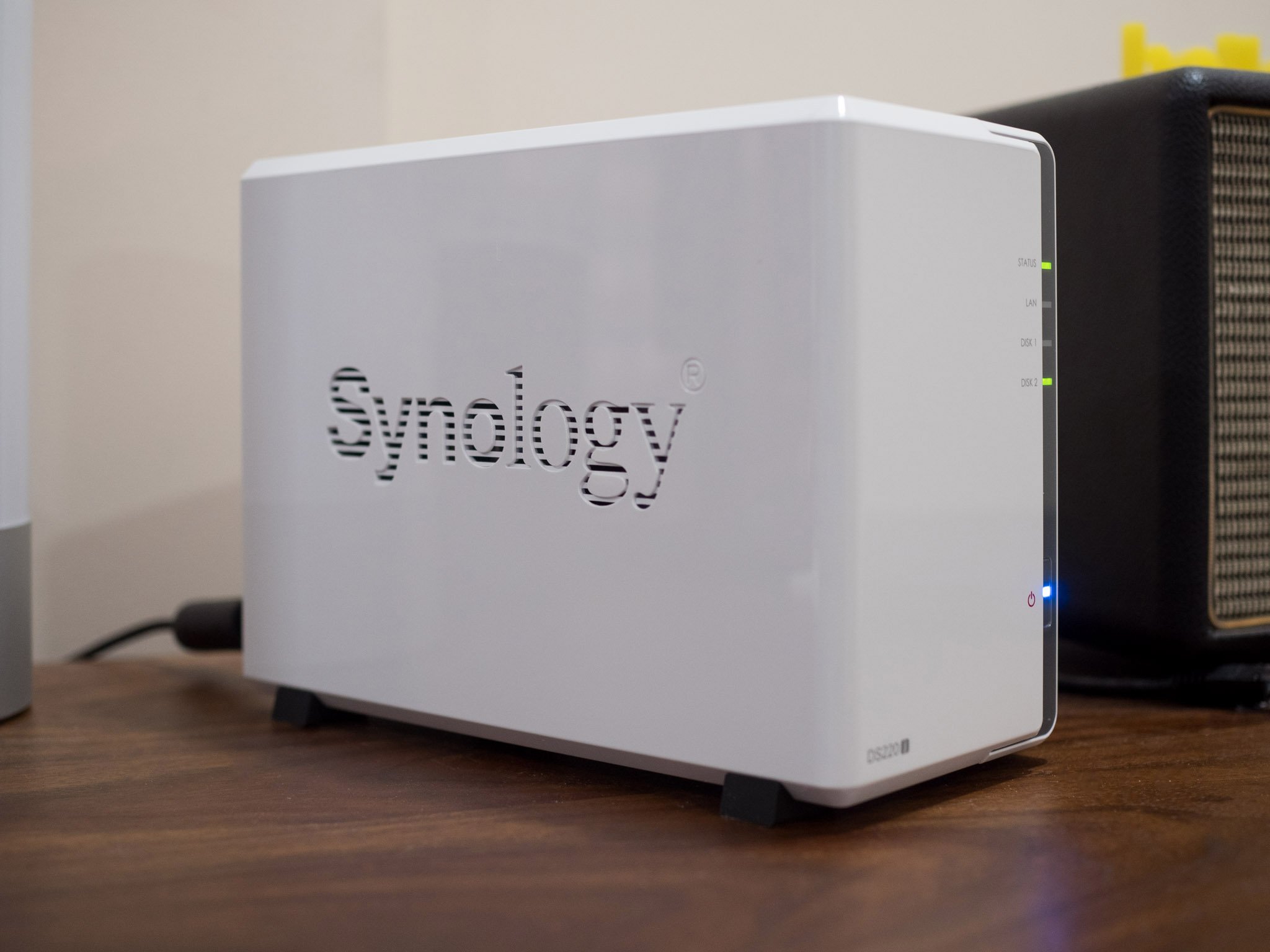
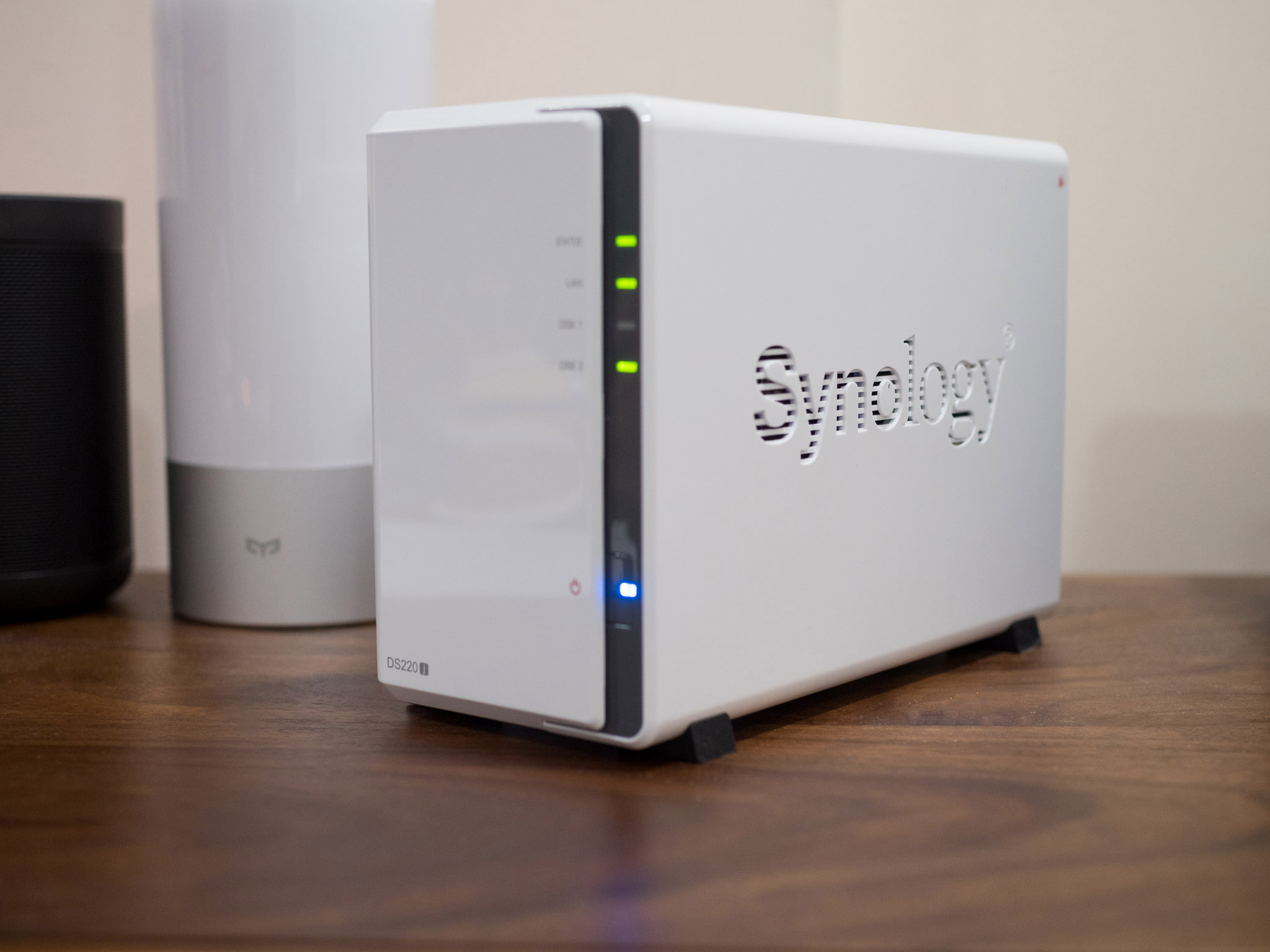
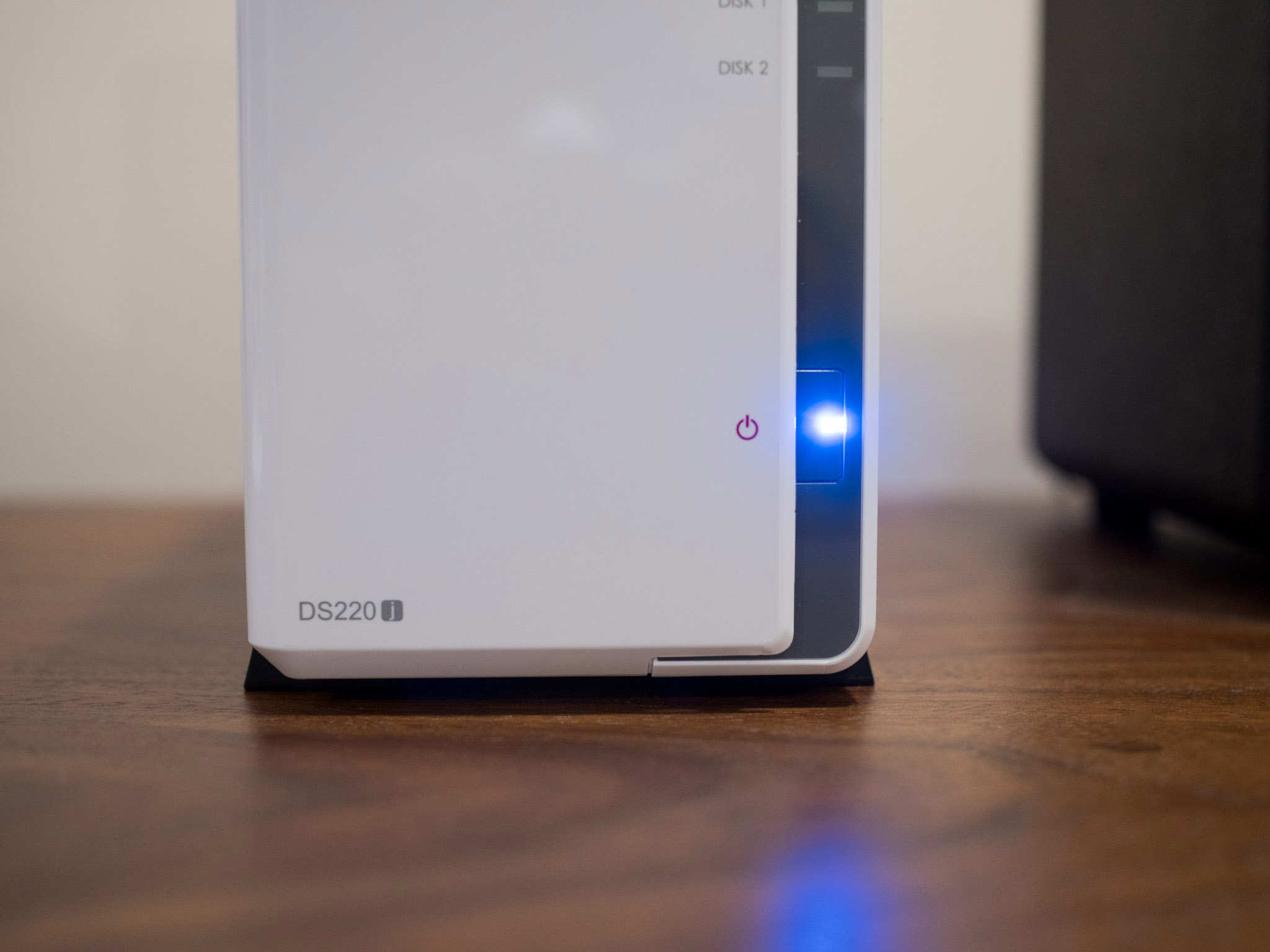
The DiskStation DS220j has a white color scheme with a grey accent running across the front of the chassis. There are indicator lights for status, hard drives, and LAN, and the power button is located further down on the front fascia.
The DS220j has clean lines and is easy to set up and use.
At the back, you'll find the single 92mm cooling fan, along with the two USB 3.0 ports and the Gigabit Ethernet port. While it is good to see that the NAS has two USB 3.0 ports, Synology should have added a port at the front as that would have made connecting external hard drives just that little bit easier.
You'll find the Synology logo on either side of the chassis, and at the bottom, the NAS has rubber feet that ensure it stays planted on a surface. You'll have to slide the front panel off to access the hard drives, and to do so, you have to remove the two screws at the back.
You'll have to use screws to secure the hard drives in the NAS, and it isn't as elegant as the tool-less drive bays that you get on the likes of the DS220+ and other enclosures. There's also no way to slot in a 2.5-inch HDD or SSD by default, and you have to pick up an additional disk holder if you're interested in doing so.
Setting up the DS220j is about as straightforward as it gets, and it takes just 10 minutes to install the web-based software OS, DiskStation Manager. All you have to do is slot in the hard drives, connect the Ethernet cable to your router or network switch, and connect the wall socket to a plug.
Then switch on the NAS and use Synology's Web Assistant to locate the NAS on your home network. Once the NAS has been detected, all you have to do is install DiskStation Manager (DSM), set up an administrator account and password, and set up Synology's QuickConnect service — which lets you access the NAS from anywhere in the world. You can always set up remote access later and configure additional users once you boot into DSM.
Synology DiskStation DS220j Performance
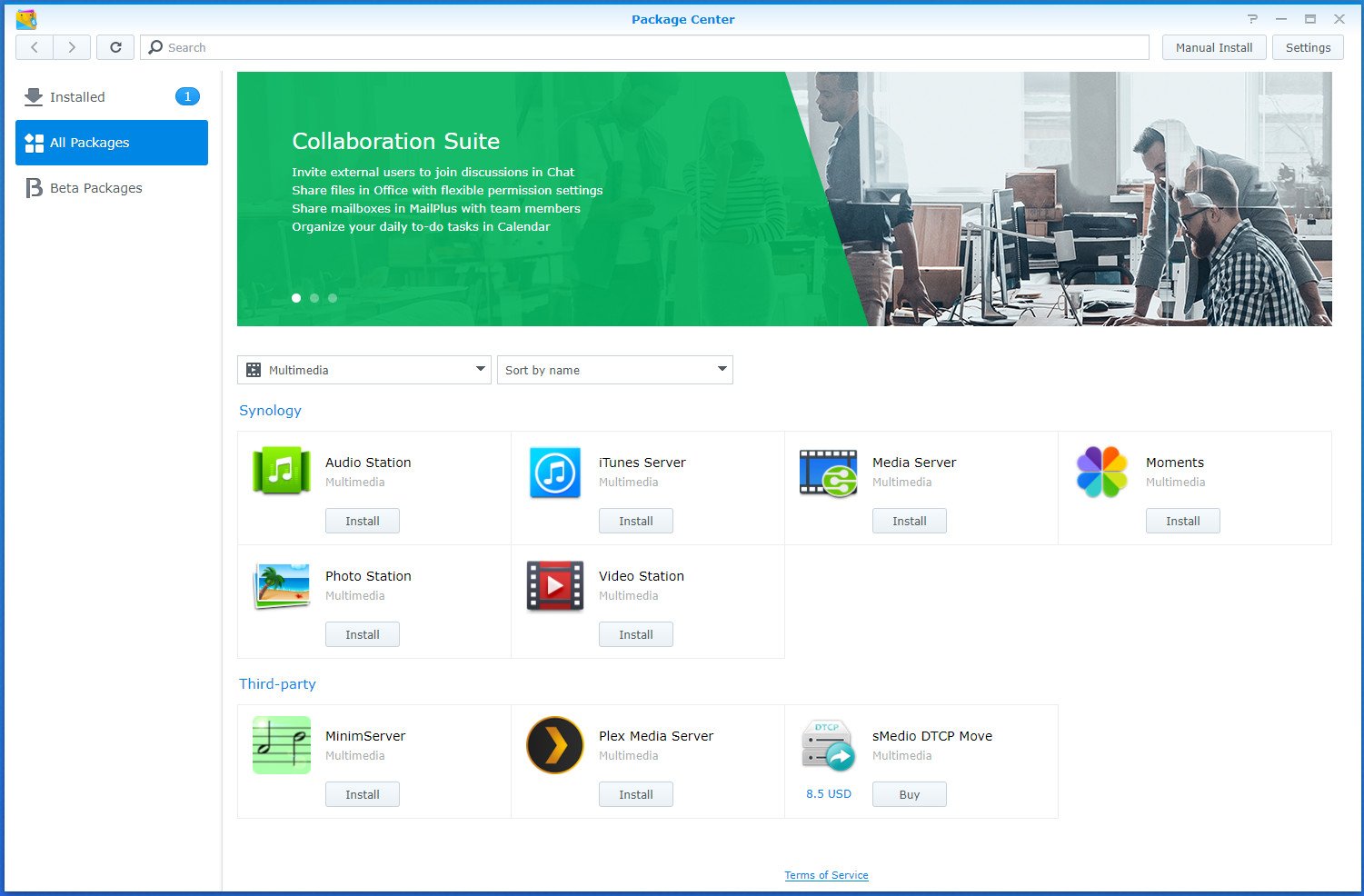
The DS220j is similar to the best Synology NAS enclosures in that it offers the same great software experience. The key differentiator for the manufacturer is DiskStation Manager — the web-based software has a ton of great features and a clean interface. You can set up your own audio, photo, media, and mail servers, and it even has a built-in productivity suite similar to Microsoft Office.
The DS220j does a great job as a Plex media server and an offline photo storage service.
A key use case for those looking to pick up the DS220j is media streaming. There are two solutions in this front: either use the built-in Video Station to stream your locally-stored media collection across your home network, or use Plex. The Video Station utility has plenty to offer and is a robust solution — in conjunction with the audio-focused Audio Station — and I routinely use it on my NAS enclosure.
But Plex has a more refined interface and works on just about any platform you can think of. The Plex client is available for installation natively within Package Center, and all you need to do is install the client and set up the media server to get started. The DS220j is powered by a quad-core Realtek RTD1296 chipset and has 512MB of RAM, and the hardware on offer holds up just fine as a Plex server. I had no issues streaming 1080p content to phones and TVs in my home, and it did a passable job with 4K media.
That said, the DS220j lacks a hardware transcode engine, so you won't be able to transcode content. This isn't an issue as long as you're using a relatively new streaming box or TV — as they have the relevant containers and video codecs — so as long as you're using the direct play mode in Plex, the DS220j does a great job.
The other key use case is backing up files from all the connected devices in your home. This is where Synology Drive is particularly handy; the service is similar to Google Drive's back up and sync mode, and it automatically syncs data from Windows and macOS machines to the NAS.
As for photos, Photo Station is a robust solution that collates your photos and sorts them automatically. You'll have to use DS photo to upload photos from your phone to the NAS, and it a great alternative to using a cloud-based utility like Google Photos. With Google removing unlimited uploads in Photos from next year, using a NAS like the DS220j to back up your photos is a great alternative.
The DiskStation DS220j gets a lot right for a budget NAS and is a great way to get started with a home server for first-time buyers. That said, it misses out on features like M.2 SSD caching.
The DS220j is missing a few features, but the omissions don't affect the overall experience.
Premium models like the DiskStation DS920+ feature M.2 slots that let you add an NVMe SSD to the NAS for SSD caching, leading to much better performance in office-based workloads. The feature doesn't make a lot of difference for media streaming, so if you're just looking to buy a NAS to use as a Plex server and backing up data from connected devices, this isn't a major omission.
There are similar limitations elsewhere. There's also no Btrfs file system here, with the NAS limited to the EXT4 format. The only other downside with the DS220j is that it has limited memory. You get just 512MB of DRR4 RAM, and Synology should have added at least a 1GB module here, considering the memory module isn't upgradeable.
None of these issues affect the real-world performance of the DS220j. It is aimed at the value segment, and in that context, it does a fantastic job. It does miss out on some of the added features that you get on premium models, but when it comes to tasks like a Plex server or photos storage solution, the DS220j is one of the best options in this category.
Synology DiskStation DS220j The competition
There are a lot of options if you're looking for a budget NAS. TerraMaster's F2-210 is also a 2-bay NAS enclosure, and it is available for $149 — $30 less than the DS220j. TerraMaster's software isn't as polished as Synology, but the NAS lets you run Docker containers, has a quad-core chip that goes up to 1.4GHz, 1GB of RAM, and accommodates 2.5-inch HDDs and SSDs.
Suppose you want an all-in-one solution that has a built-in hard drive. In that case, the Buffalo LinkStation 210 4TB is a great option at $176. You get a 4TB drive built into the enclosure. While the software is nowhere as robust as DiskStation Manager, you can easily back up photos and other documents seamlessly and stream media to connected devices in your home.
Synology DiskStation DS220j Should you buy?
You should buy this if ...
You want to build a Plex media server
Looking to build an affordable Plex media server for streaming your media collection? The DS220j has native Plex integration and does a fantastic job in this area. Setting up Plex is about as straightforward as it gets, and you can easily stream your local media files on any connected device.
You need a solution for backing up photos
The DS220j lets you easily back up photos from all the phones that are connected to your home network, making it a great alternative to Google Photos. All the photos are stored locally on the NAS, and the Moments feature does a good job creating highlights from your photos.
You want an affordable home server
The affordability of the DS220j makes it a standout choice if you're just getting started with a home server. Basically, you're getting access to all the great software features that DiskStation Manager has to offer at an attractive price point.
You should not buy this if ...
You need more RAM
The DS220j has 512MB of RAM, and there's no way to upgrade the module. The RAM doesn't create a bottleneck yet, but it may turn into a problem later on.
You want all the extras
Need M.2 slots for SSD caching or dual Gigabit Ethernet ports? You'll need to pick up a model in the Plus series, like the $399 DiskStation DS720+.
The DiskStation DS220j delivers outstanding value for what you're paying here. With two drive bays that can hold a total of 32TB of storage and Gigabit Ethernet connectivity, and two USB 3.0 ports, it nails the basics.
Sure, the DS220j misses out on features that you'll find on the enthusiast Plus series models, but that's not the point of the NAS. The enclosure is aimed at first-time buyers that are looking to stream media and back up data and photos, and it does a fantastic job when it comes to these use cases.
4.5out of 5
There's also the cost of the hard drives to consider. I'd recommend going with a Seagate 6TB IronWolf to get started. This drive will set you back another $155, but you get more than enough storage for your media collection, photos, and other files, and you get long-term reliability.
So if you're looking to buy a NAS enclosure for the first time and want to see if it fits your needs, the DiskStation DS220j is the perfect product. It's affordable enough that you're not spending too much money, you get to access the excellent DiskStation Manager software, and it is great as a Plex media server and offline photo storage solution.
Synology DiskStation DS220j
Bottom line: The DiskStation DS220j has everything you need in a budget home server. The NAS enclosure works great as a Plex media server, allowing you to stream media to all connected devices. You can also back up photos and other files with ease, and DiskStation Manager offers a ton of useful software features.
Every year, for as long as I can remember, my family has gathered on Thanksgiving and Christmas at my grandparents' place. For some of us, it's the only time we see one another throughout the year. It's a relatively simple tradition that's, surprisingly, lacks the holiday horror stories you hear about families fighting or food being ruined.
This year, we're not gathering together. My grandparents are up there in ag,e as you can imagine, and their health is more important to all of us than any one event. I knew this was going to be a video chat Thanksgiving months ago, but computers aren't exactly my grandfather's favorite thing and my grandmother's hearing aids rarely mix well with the small speakers on most laptops and phones. Webcams, while great and plentiful on the market, weren't the solution. I needed something dead simple to use where they could sit and be comfortable and not need to strain to hear and understand everyone.
Facebook's Portal TV was the only practical solution. I wish I had better photos to help illustrate why I feel this way (you'll quickly see why that's not happening), but trust me, the results were worth it.
Socially distanced set-up
I've been safe for the last nine months, all things considered. While I'm not 100% locked down due to absolute emergencies and food, my collection of masks is extensive and my small bubble of friends and family are very good at sharing when they need to put visits on pause for a couple of weeks until they're confirmed safe again.
Given what we know about the risks associated with even small doses of COVID-19, you couldn't pay me to step inside my grandparents' place right now with anything less than a full biohazard suit. That makes setting up an internet-connected video chat box somewhat complicated, so to make all of this work in the first place I needed to get creative.
My grandfather unpacked the Portal TV and we got it all plugged in together over a phone call, but when it came to setting up the accounts and getting started, he needed help. Facebook's Portal UI relies largely on wireframe animations of the remote to get started with no words at all, and this pictographic animation was not something he could decipher. If the screen had said "hold down these two buttons for a few seconds to pair" he would have been fine, but the animations weren't enough for him. Even if he'd gotten past that initial setup screen, asking him to type in the 15 character Wi-Fi password we'd set up for him by navigating the on-screen keyboard probably would have resulted in the camera on top of his television being politely placed in the garbage.
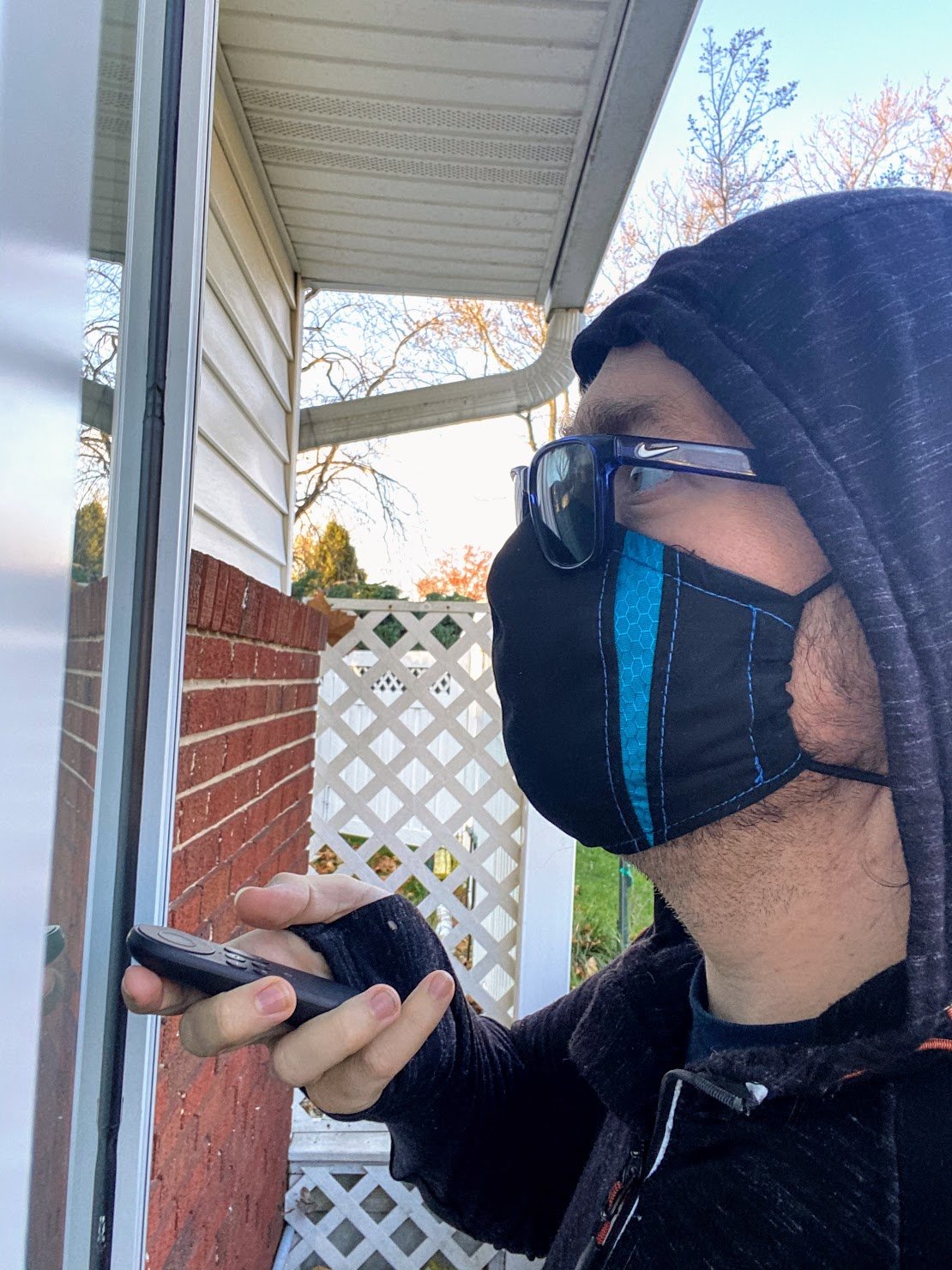
To make all of this work, I asked my grandfather to place the remote in his mailbox so I could come pick it up. I then stood in the large bay window outside his living room and used that remote to complete this configuration.
My grandparents barely use the internet for email, so of course, they don't have Facebook accounts, which made Portal TV setup more interesting. You can use WhatsApp if you don't have Facebook, but there are a few extra steps. This process involves using your phone to scan a QR Code on the TV, which is perfectly easy when you're standing in the same room as the TV, but somewhat less easy when you're 15 feet away and there are multiple layers of glare-ridden glass with a bright blue sky up above. After a couple of attempts, the camera was finally able to focus on the QR code, and finishing the account creation was possible.
I used my WhatsApp account and my phone number to create an account for them. It was now time to show my grandparents how to use this new box.
Adventures in group calls
My family has done video chats loads of times before, but usually one of the grandkids is there in the room or nearby. When one of us is far away, the others are usually there to help. This year, my grandparents are going to need to push all of the buttons on their own, and that isn't something they were excited about at first.
Seeing this new way to have everyone together made them smile in a way I had not seen in nearly a year.
WhatsApp on Portal TV allows you to set up Favorites so you can see them on the homescreen and easily connect to them, but it doesn't allow you to create contacts from within Portal TV. In fact, when browsing ways to make all of this work, including using the recently announced Zoom access for video chats, I found a number of support documents included the phrase "Portal TV not supported." It seems this version of the Facebook Portal family is not exactly seen as equal to the others, leading to situations like mine where I must create a contact on my phone then wait for that contact to be synced to the Portal TV so I could then add it to the Favorites. Fortunately, it was still above 50 degrees Fahrenheit outside while I attempted to set everything up. I set all of the family members as Favorites so they sit right on the home screen for my grandfather to easily access.
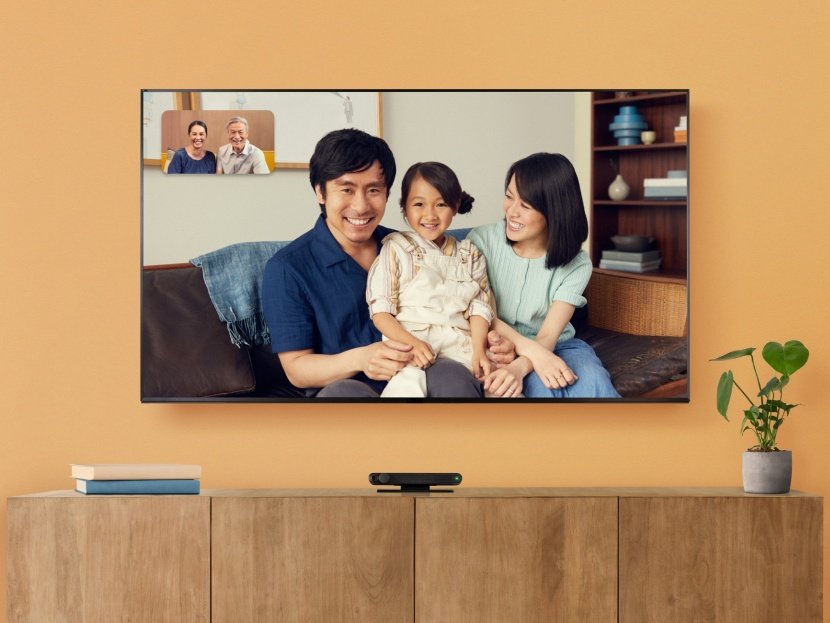
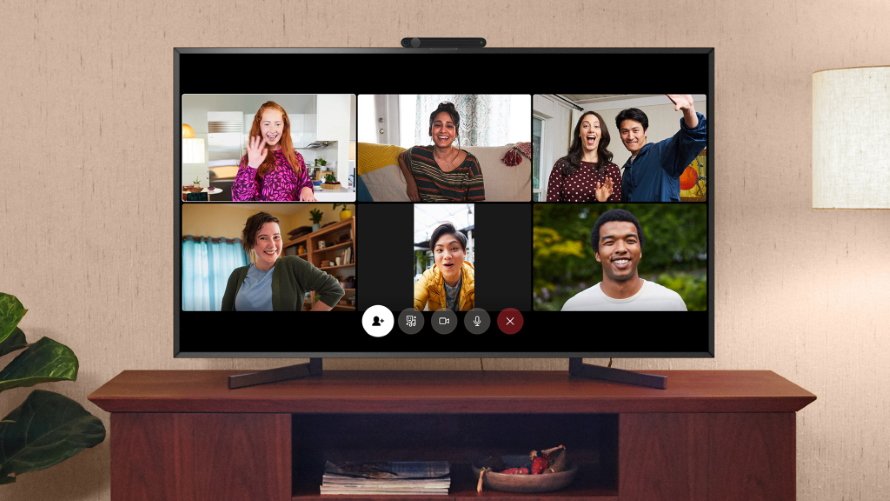
Once my grandparents could see the names of everyone to call, they quickly navigated the interface with ease. Click on the face you want, click on the camera icon, and wait for a person to show up on the TV. The loud speakers on the TV made it easy to communicate, and the clever software in the cameras allowed the folks on the other end to see whoever was talking clearly, even though they were sitting across the room in their favorite chairs. The TV was also big enough for groups of people to connect at the same time and still be able to enjoy everyone.
That last part, the group call, was the part that seemed like magic to my grandparents. While they had done plenty of one-on-one video chats with family before, Portal TV allowed them to see multiple people in multiple states at the same time, and allow everyone to talk to one another. For most of the folks reading this, that feature is neither new nor special. For my grandparents, who have been wrestling for weeks with the decision to "cancel" Thanksgiving, seeing this new way to have everyone together made them smile in a way I had not seen in nearly a year.
Thankful, and a little hopeful
My grandfather is often more right than I am willing to admit when it comes to technology. He's not a fan of how dependent everyone is on these gadgets, especially those among us who can't function when those gadgets stop doing things. He finds value in knowing how things work and being able to take them apart to learn more. While I apply that logic a little differently, it's true that many consumers expect magic when they hold technology with no consideration for how it works and what to do when it stops. In his mind, it's better to do things manually than become reliant on something he can't understand.
Today, my grandfather used words like "intuitive" and "easy" to describe his experience with Portal TV. He asked why more technology wasn't like this, where you just pushed a button as got someone on the other end. I watched him not just follow instructions on how to place a call, but get excited about exploring this system and trying out voice commands. He recognized it was only that simple because it was set up for him, but actually using of the thing was so easy it made him want to call as many people as he could just to enjoy feeling like they were in the room.
This year, for my family, that ease of use will be the difference between a very lonely Thanksgiving and one full of smiles and conversation and something vaguely resembling normal.
Connect this camera to your TV and instantly turn it into the biggest Facebook Portal you can find, complete with epic video chat and streaming video features for everyone to enjoy.
from Android Central - Android Forums, News, Reviews, Help and Android Wallpapers https://ift.tt/3nLrpoC
via IFTTT